
1. Before you start
The external quality module records the unit's participation in proficiency testing, from the round announcement to the cycle certificate. It follows the actual order of the process: provider, program, program analytes, round (receipt, items, results, check and submission), the provider's official evaluation, nonconformities and appeals, cycle performance and certificate.
- Open External quality in the side menu. The group has Rounds, with the number of pending items, Nonconformities, Performance and Programs.
- Check the unit in the header. Providers apply to the whole laboratory; programs, rounds and nonconformities belong to the selected unit.
- While a setup step is missing, the Rounds screen shows the Start with the setup guide in four steps: Provider, Program, Program analytes and First round. Each completed step is checked, and the link leads to the next one.
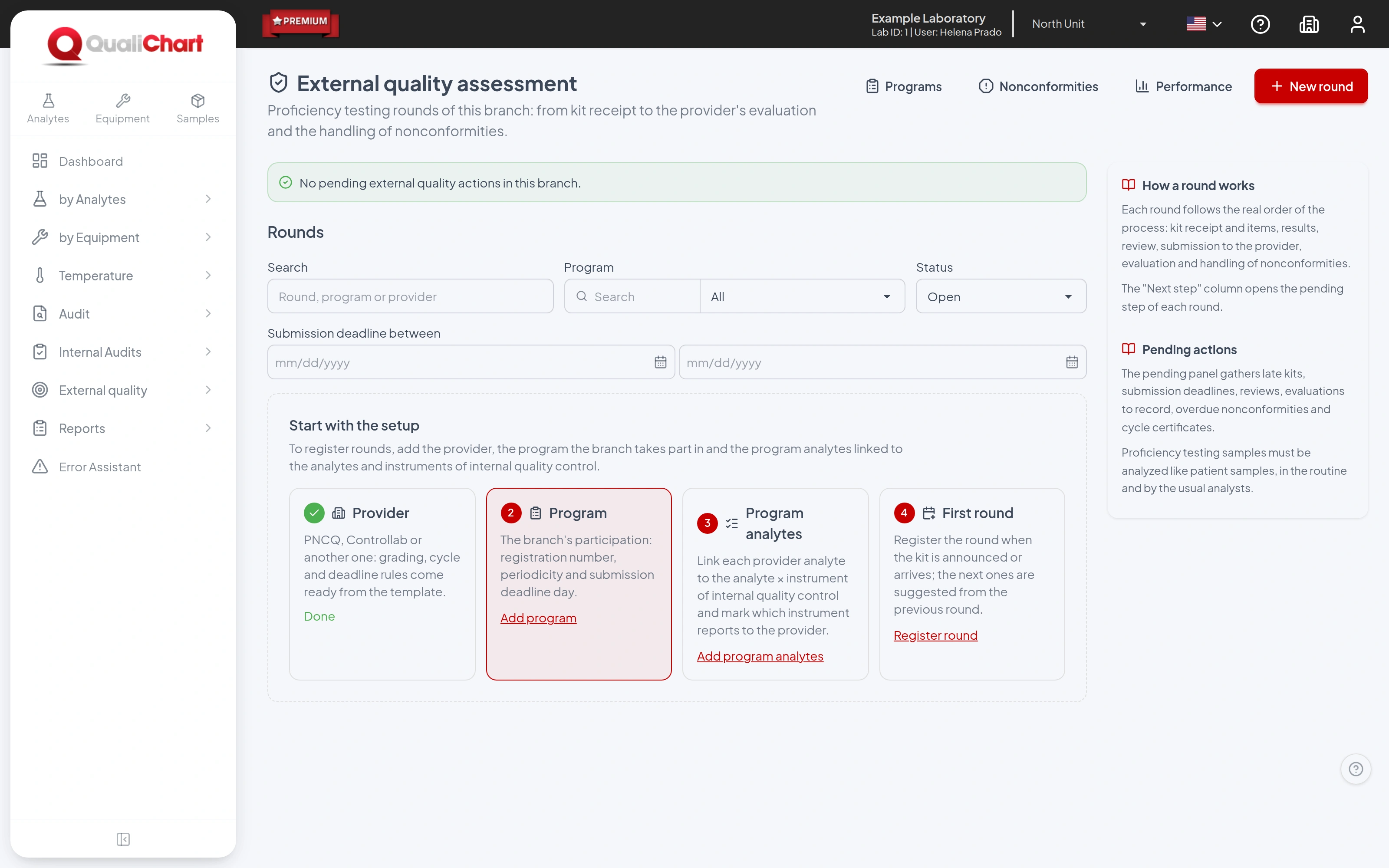
The screens in this guide come from QualiChart with demonstration data. The Example Laboratory takes part in PNCQ, with the PRO-EX Clinical Chemistry, Immunology and Hematology programs, and in Controllab, with a Clinical Chemistry program that accepts more than one analytical system per assay. Five users split the roles: Helena Prado is the administrator, Rafael Souza receives the kits and enters the results, Camila Torres checks, submits and records the evaluations, Marcos Lima handles nonconformities, closes rounds and manages the setup, and Juliana Reis works at the North Unit.
2. Permissions, policy and audit trail
Before the first round, the laboratory administrator defines who does each step. In the laboratory menu, the building icon in the header, open the external quality settings. Only administrators change the policy and permissions, and they hold every permission in the module.
- In the Permissions tab, each row is a user and each column a permission. The All column checks the whole row.
- Separate the roles: who receives the kit, who enters results, who checks and submits, who records the evaluation and who approves.
- Click Save changes. Changes apply the next time the screens are opened.
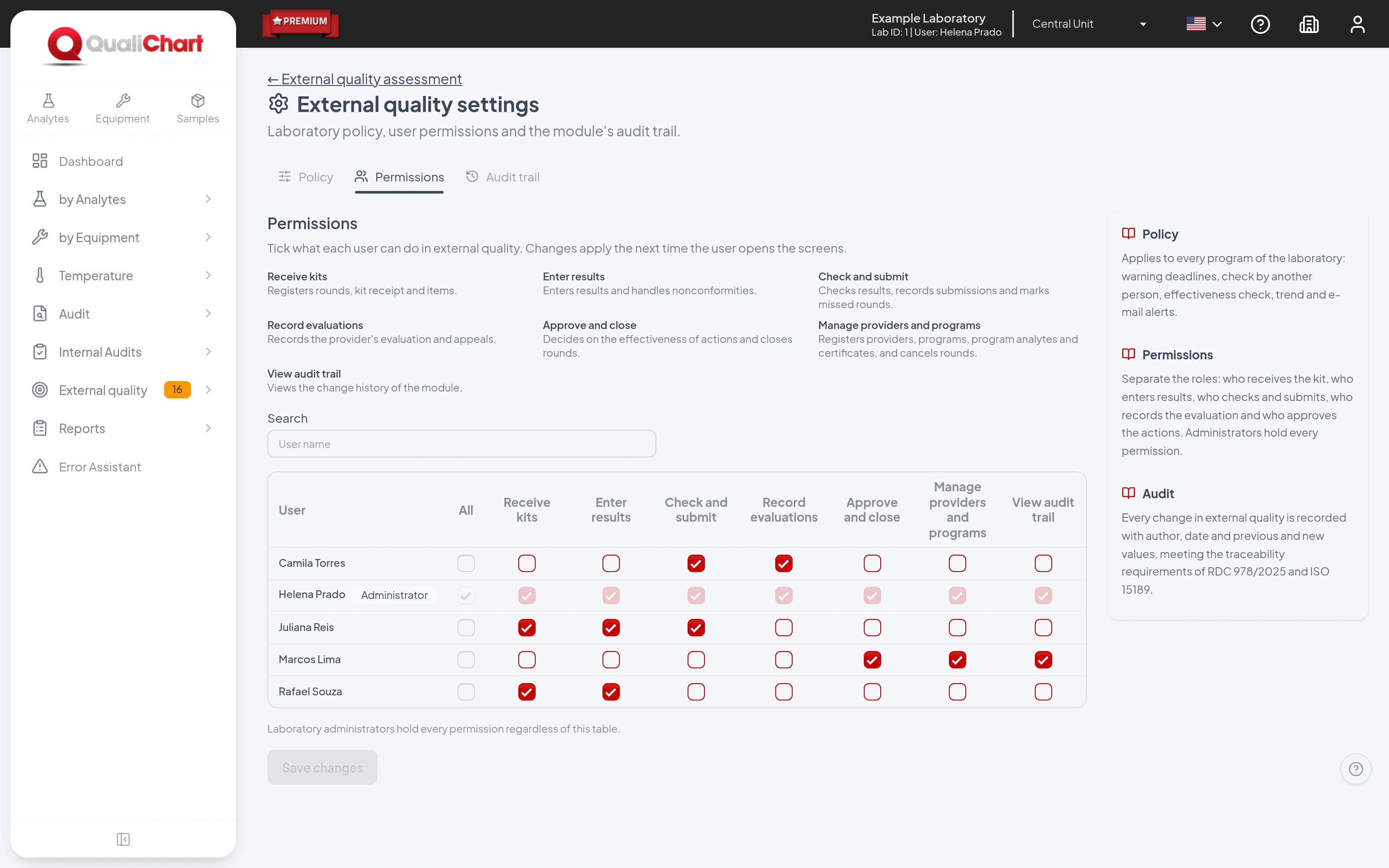
When a permission is missing, the action button is disabled and shows the name of the permission required.
| Permission | What it allows |
|---|---|
| Receive kits | Register rounds, the kit receipt or access to the material, and the items, with acceptance and substitutes. |
| Enter results | Enter and correct results, record nonconformities, fill in the investigation and complete the action. |
| Check and submit | Check results, record the submission and rectifications, record nonconformities and mark the round as missed. |
| Record evaluations | Record the provider's official evaluation, record nonconformities, and record and decide appeals. |
| Approve and close | Record nonconformities, fill in the investigation, complete the action, decide effectiveness and close rounds. |
| Manage providers and programs | Register providers, programs, program analytes and certificates, cancel rounds and update a round's rules. |
| View audit trail | See the module's audit trail and issue the audit trail report. |
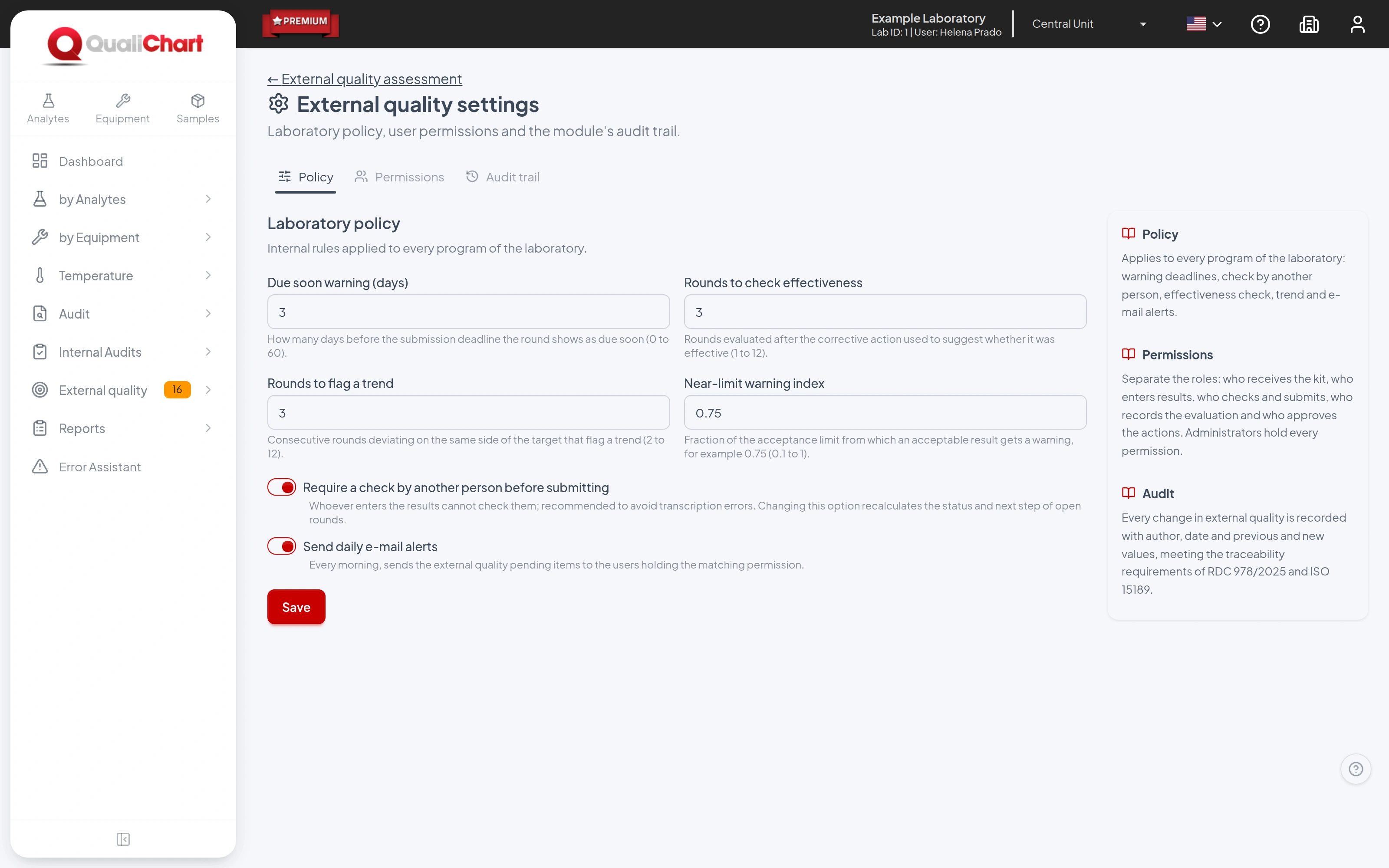
The Policy tab applies to all of the laboratory's programs:
- Due soon warning: how many days before the submission deadline the round shows as due soon; the default is 3. The same number warns when an appeal deadline is ending.
- Rounds to check effectiveness: how many rounds evaluated after the corrective action the system waits for before suggesting whether it was effective; the default is 3.
- Rounds to flag a trend: how many consecutive rounds with a deviation on the same side of the target flag a trend; the default is 3.
- Near-limit warning index: the fraction of the acceptance limit from which a still acceptable result gets a warning; the default is 0.75.
- Require a check by another person before submitting: on by default and recommended against transcription errors. Changing this option recalculates the status and next step of open rounds.
- Send daily e-mail alerts: on by default; see section 17.
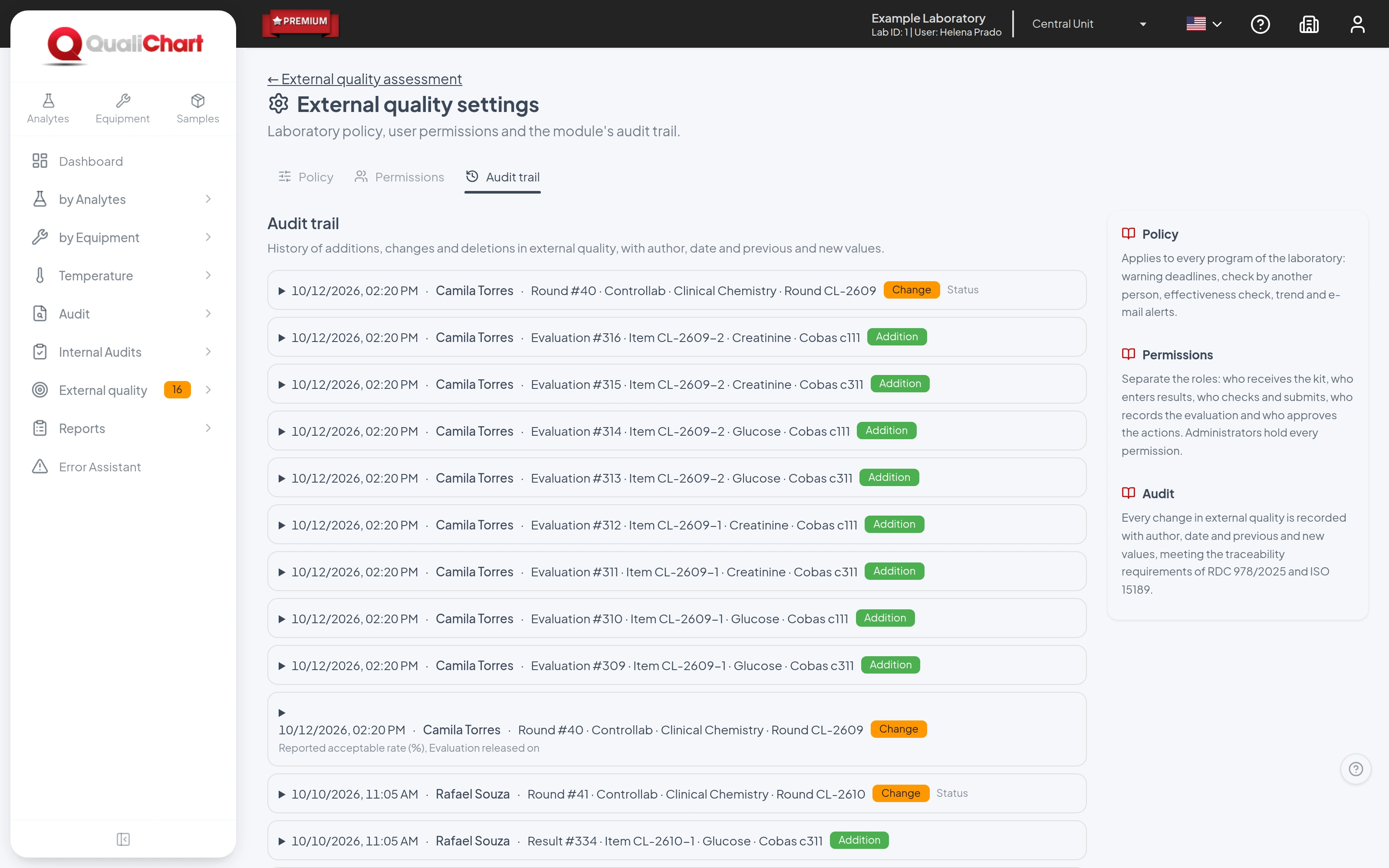
The Audit trail tab lists every addition, change and deletion in the module, with author, date and old and new values. Click a row to see the fields changed. The trail is available to administrators and to users with the View audit trail permission.
3. Register the provider
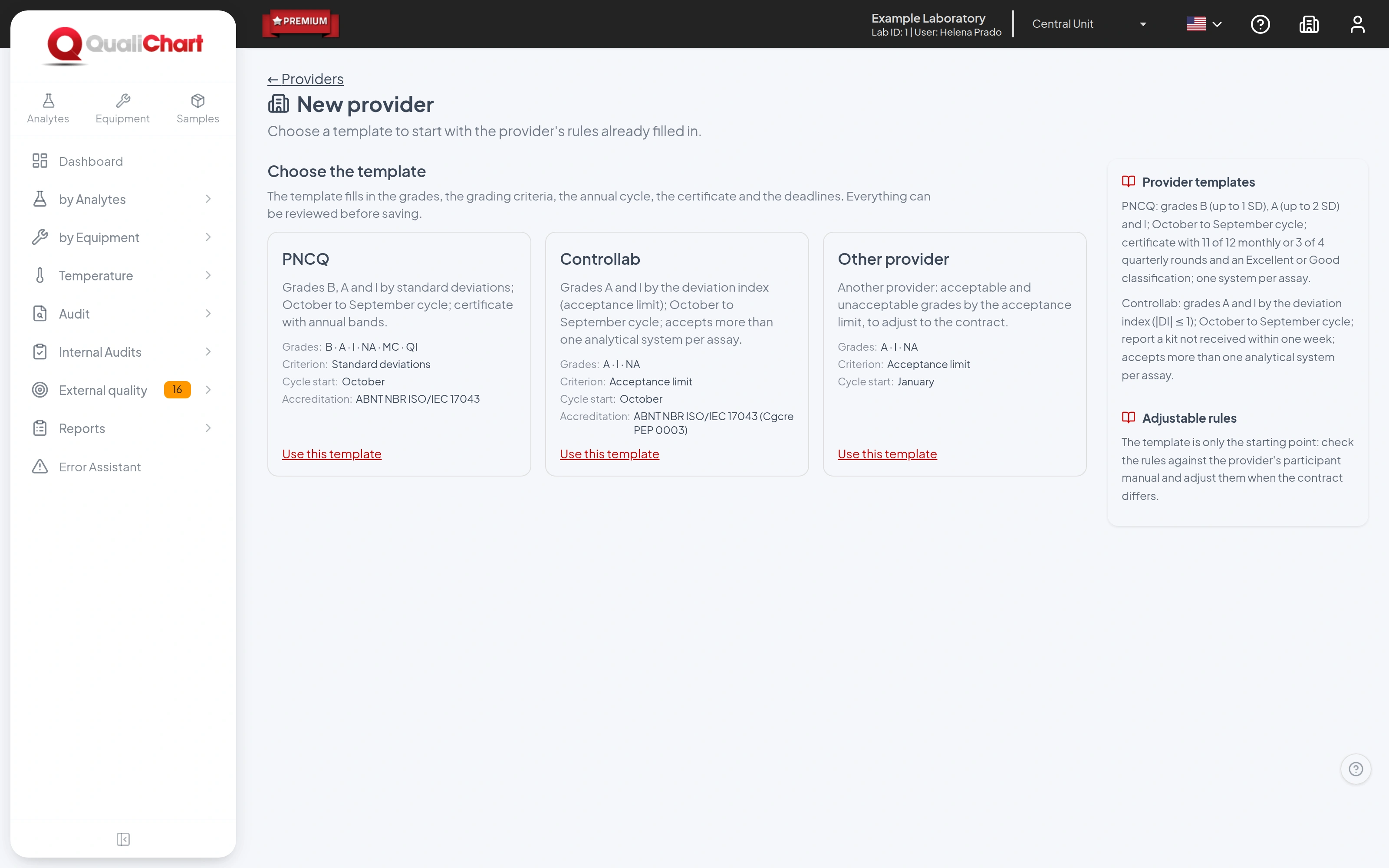
- In Programs, click Providers and then New provider.
- Choose the template, PNCQ, Controllab or Other provider, and click Use this template. Name, accreditation, website, source of the rules and every grading rule come filled in.
- In Provider details, complete the contact, e-mail and phone and click Add provider.
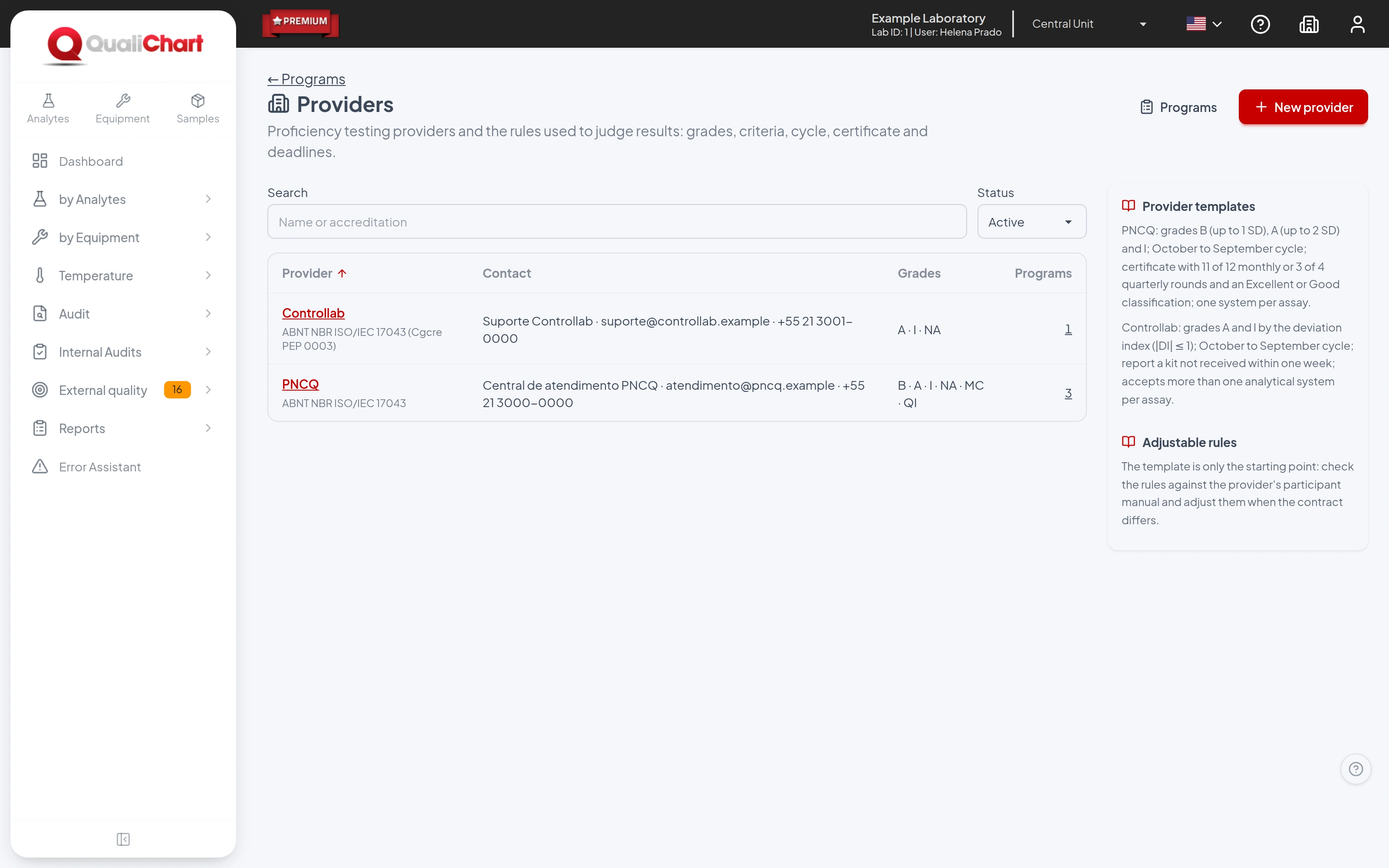
A provider can also be created without leaving the program form, through the link that opens the registration from a template. A provider with programs cannot be deleted: uncheck Active provider so it does not appear in new programs, keeping its history.
The templates bring the initial values below. They are a QualiChart starting point, not the provider's rule: check each item against the participant manual and the laboratory's contract.
| Template rule | PNCQ | Controllab | Other provider |
|---|---|---|---|
| Grades | B (Good), A (Acceptable) and I (Unacceptable); NA, MC and QI are not counted | A (Adequate) and I (Inadequate); NA is not counted | A (Acceptable) and I (Unacceptable); NA is not counted |
| Quantitative result | Standard deviations: |Z| ≤ 1 → B, |Z| ≤ 2 → A, above → I | Acceptance limit: |DI| ≤ 1 → A, above → I | Acceptance limit: |DI| ≤ 1 → A, above → I |
| Qualitative and semi-quantitative | Matches → B; does not match → I | Matches → A; does not match → I | Matches → A; does not match → I |
| Annual cycle | October to September | October to September | January to December |
| Annual bands | Excellent from 81%, Good from 75%, Fair from 65% and Poor below that | None | None |
| Certificate | 11 rounds submitted (monthly) or 3 (quarterly) and a minimum acceptable rate of 75% | No criterion in the program; per-assay minimums in the cycle | No criterion |
| Kit not received | 72 hours after shipping | 168 hours (one week) after shipping | 72 hours after shipping |
| Appeal deadline | 30 days from the evaluation release | No deadline | No deadline |
| Analytical systems per assay | One | More than one | One |
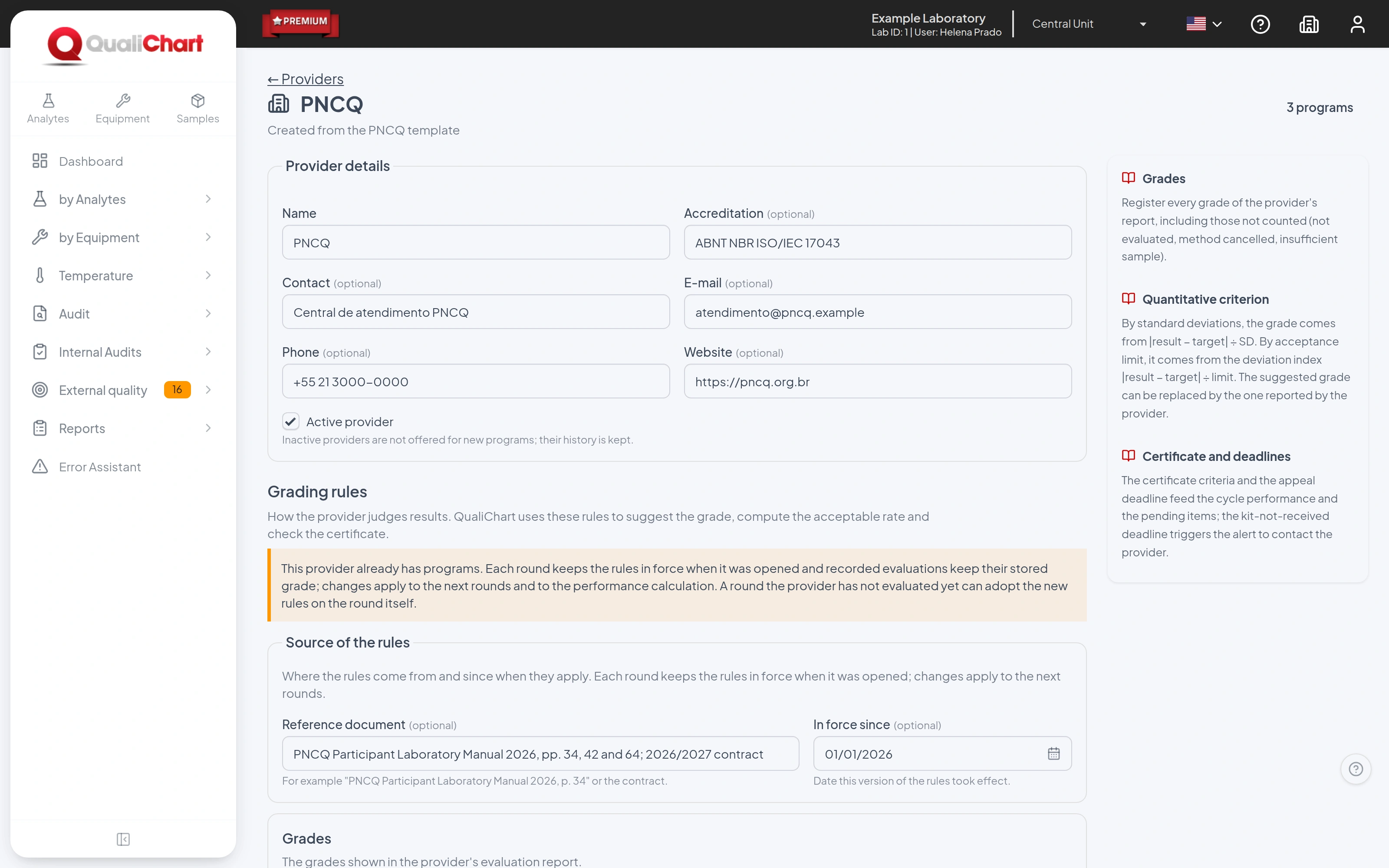
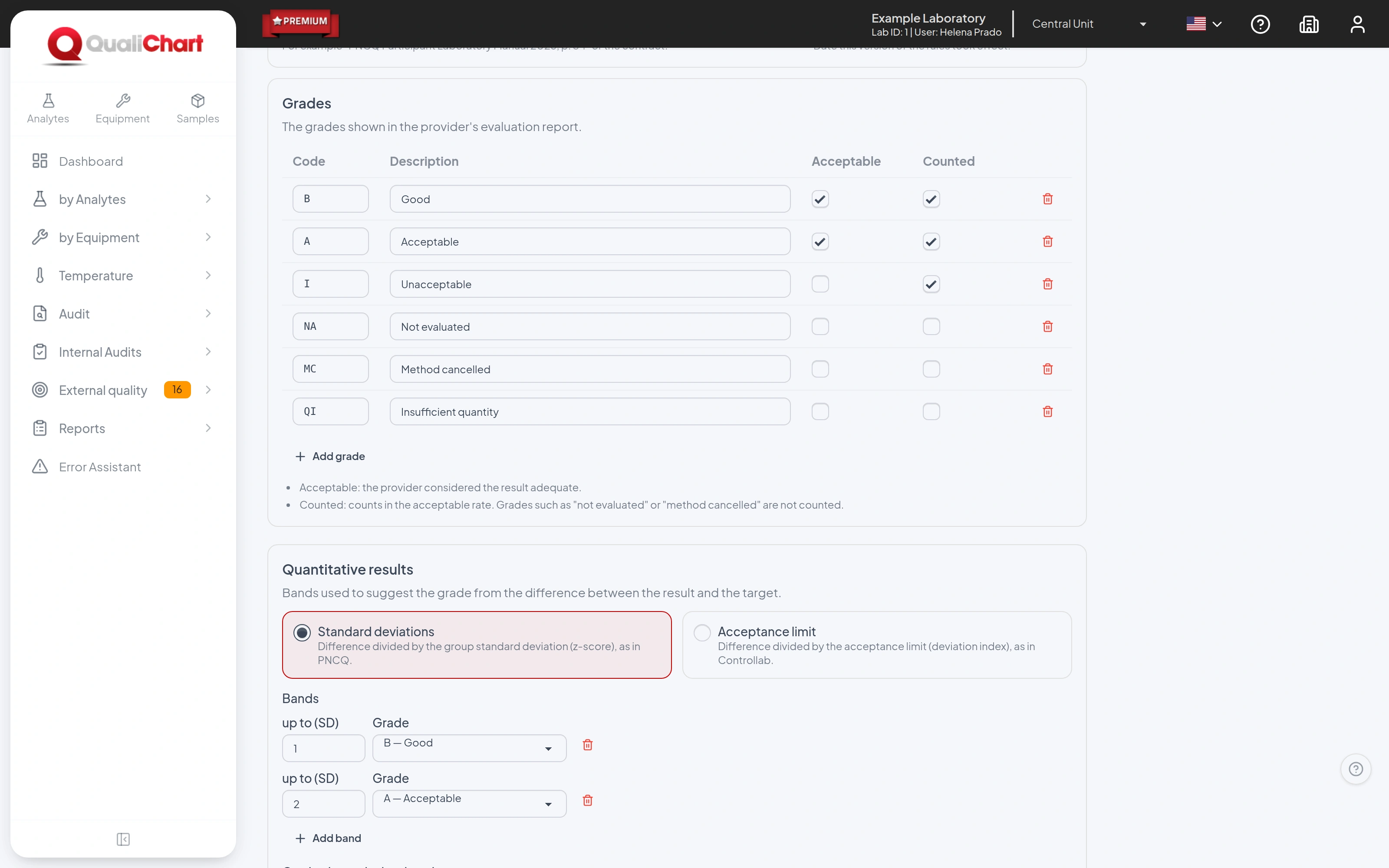
Adjust the rules in Grading rules, on the provider page:
- Source of the rules: the reference document, such as the participant manual page or the contract, and the date the rules took effect.
- Grades: code, description and the Acceptable and Counted marks. Also register the grades that are not counted, such as not evaluated, method cancelled and insufficient quantity. At least one acceptable and one unacceptable counted grade are required.
- Quantitative results: the criterion, standard deviations (Z-score) or acceptance limit (deviation index), the bands with the grade of each one and the grade above the last band.
- Qualitative and semiquantitative: the grade when the result matches, the grade when it does not match and the semiquantitative tolerance in scale grades; 0 requires the same grade.
- Annual performance and certificate: cycle start month, annual bands, minimum rounds per frequency and minimum acceptable rate.
- Deadlines: hours to complain about a kit not received, counted from shipping, and days to appeal, counted from the evaluation release.
- Analytical systems: whether the provider accepts the same assay from more than one instrument. It is the initial value for new programs.
4. Register the program
Register one program for each contracted area, such as Clinical Chemistry, Immunology or Hematology. Each unit has its own programs.
- In Programs, click New program.
- Choose the provider and enter the Program name as it appears in the contract or on the provider's portal.
- Enter the Registration number, the laboratory's code at the provider, printed on the transcription sheet.
- Choose the Frequency and check the Rounds per cycle, filled in from it.
- Enter the Submission due day. It suggests each round's deadline: that day of the month after the kit is shipped or expected to arrive.
- Check Accepts more than one analytical system per assay, which comes from the provider and must follow the contract. When checked, each instrument reported to the provider submits and is evaluated separately; when unchecked, only one instrument submits each assay and the others are internal comparisons.
- In Participation period and notes, record the start and end of participation. Click Register a program.
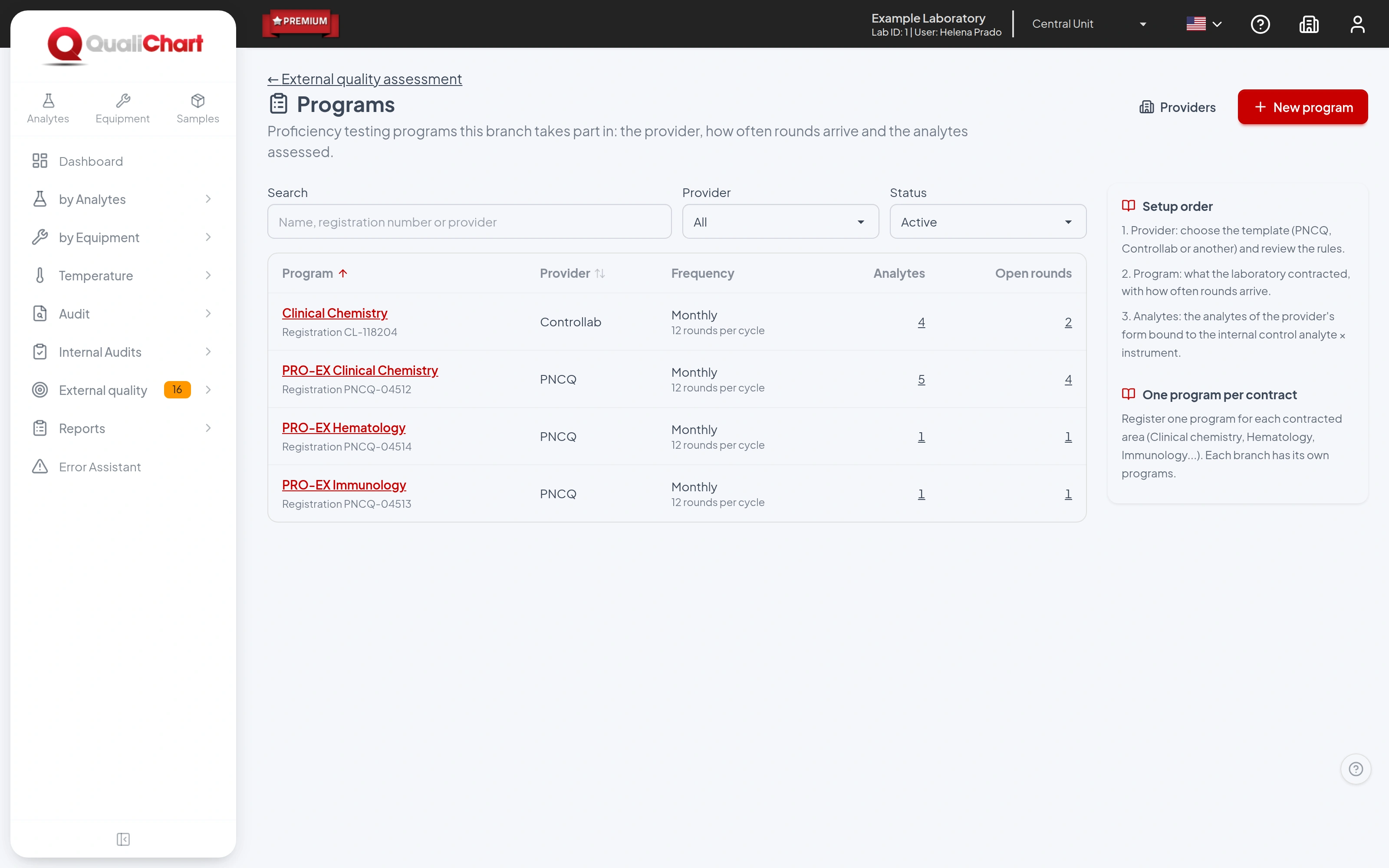
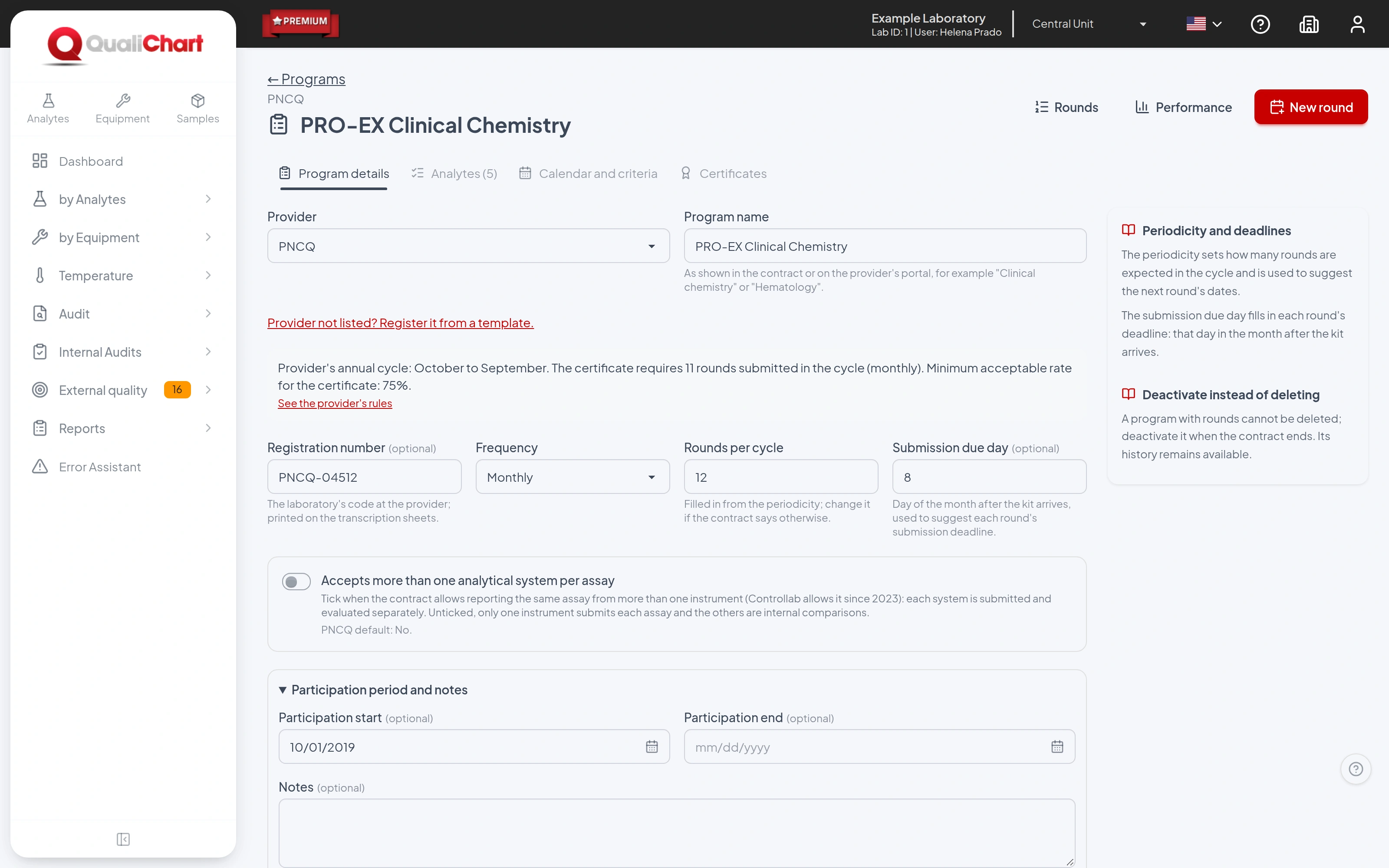
The program page has the Program details, Analytes, Calendar and criteria and Certificates tabs, plus the Rounds, Performance and New round shortcuts. A program with rounds or certificates cannot be deleted or change provider: uncheck Active program when the contract ends.
5. Link the analytes to internal QC
Each row of the Analytes tab links an analyte of the provider's form to the internal control that measures it, that is, to the analyte on one instrument.
- In the Analytes tab, click Choose analytes from internal control. The list shows the analytes linked to the unit's active instruments.
- Filter by analyte or instrument, check the ones you want and click Add.
- Check each row, which comes filled in: analyte and code at the provider, provider unit, conversion factor and result type. The value submitted is the laboratory result multiplied by the factor, and the screen warns when the units differ.
- In System, decimals, method and reagent, enter the analytical system as the provider knows it, the decimals of the provider's form, the method and the reagent, which make up the peer group.
- Order the rows with the arrows, in the order of the transcription sheet, and click Save analytes.
For qualitative and semiquantitative analytes, Options as named on the provider's form gives the name the provider uses for each scale option, for example "Reactive" instead of "Positive". Save the analytes before naming the options. For items without internal control in QualiChart, such as a morphological identification, use Item without internal control.
Who submits to the provider and internal comparisons
- Check Submits to provider on the instrument whose result is entered in the provider's channel. In a program with one system per assay, only one active instrument submits each assay.
- In a program that accepts more than one system, check each instrument reported to the provider and identify it as on the provider's form. Each system gets its own evaluation.
- Instruments that measure the same analyte without submitting are internal comparisons: choose the submitting instrument in Compare with. They are evaluated against the target reported for that submission, so they must use the provider's unit and have internal control.
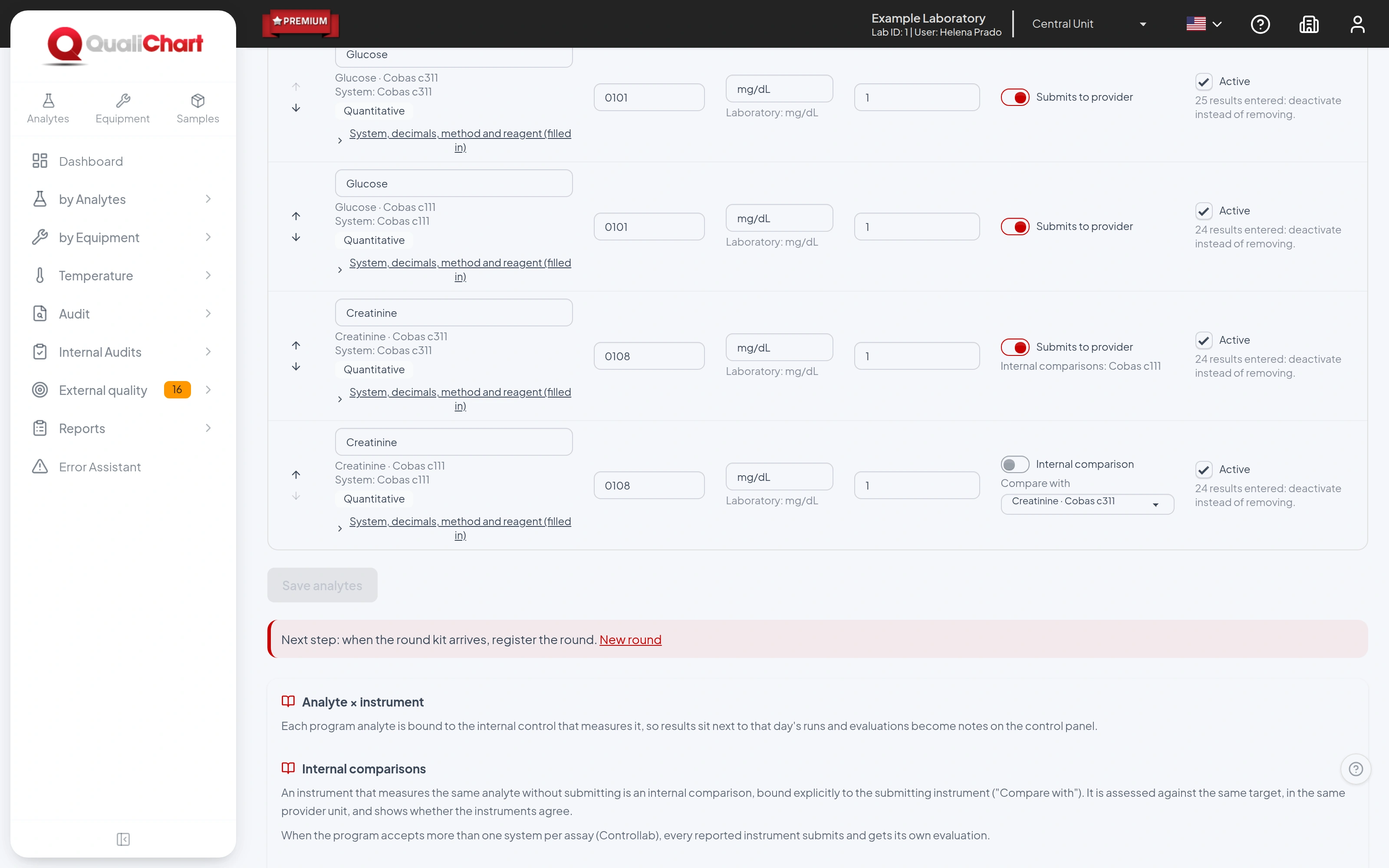
While an analyte has results in open rounds, unit, factor, submission and comparison do not change. An analyte with results cannot be removed or change control: uncheck Active, and it leaves the next rounds and the items of open rounds that do not yet have its result.
6. Record the calendar and cycle criteria
- In the program's Calendar and criteria tab, choose the Cycle. The current cycle and the next one appear, so you can record the calendar as soon as the provider publishes it.
- With no saved calendar, the screen proposes the cycle's rounds from the frequency, with the submission deadline from the day set in the program and the rounds already registered in their place. Check each row against the provider's calendar.
- In Reference, enter the provider's document, with name and version, or attach the calendar file. One of the two is required.
- In the Official calendar, each row is a round: identifier, reference month, type (regular or educational), shipping, expected arrival and submission deadline. Use Add round and the bin to complete the list.
- Click Save calendar and criteria.
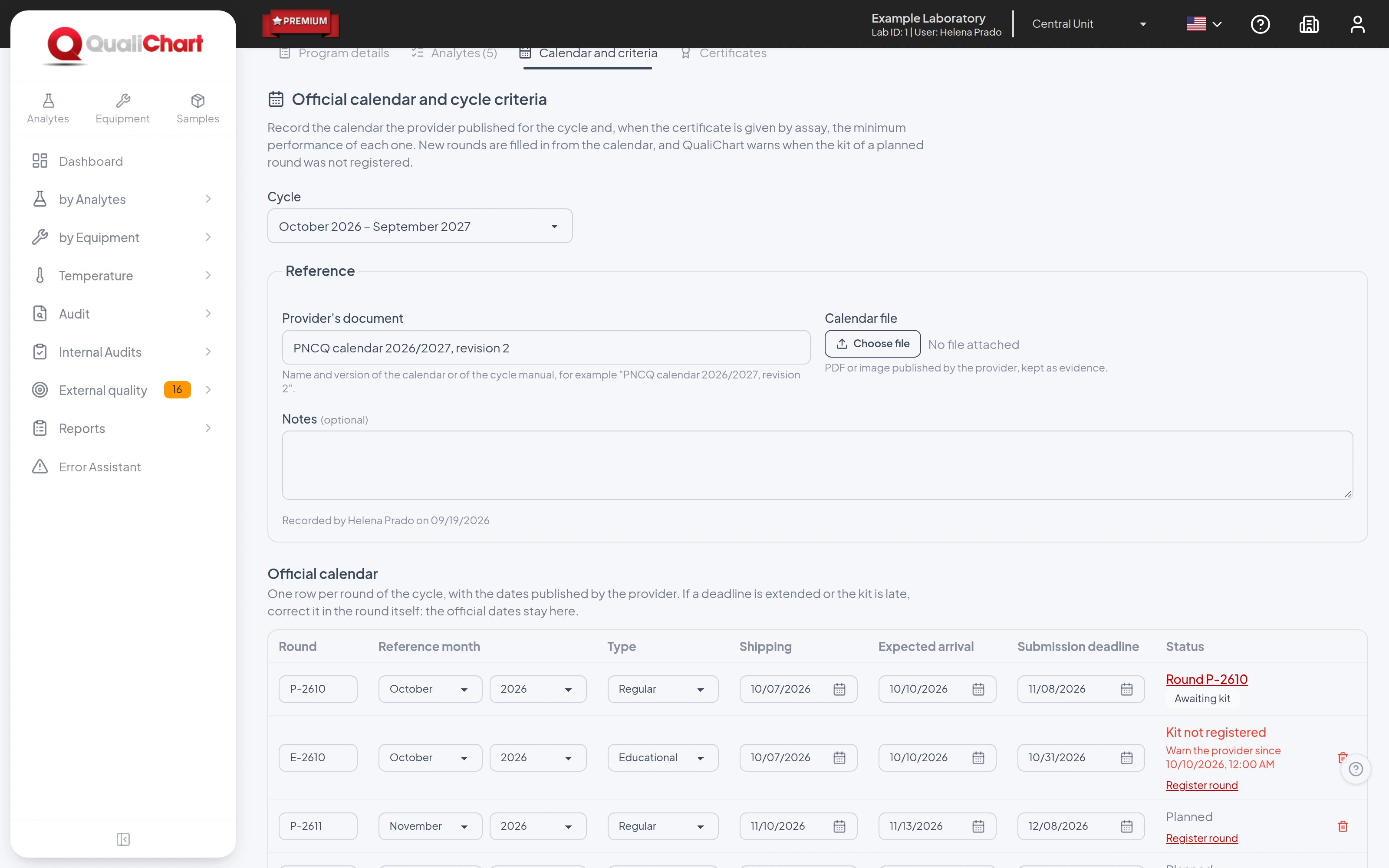
The Status column shows Round registered, with its link and status, Planned or Kit not registered. Kit not registered appears when the provider's deadline, counted from shipping, has passed without the round being registered: notify the provider and click Register round. Rounds registered before the calendar are linked with the Bind a round already registered option. Extensions and delays are corrected in the round itself; the calendar keeps the published dates.
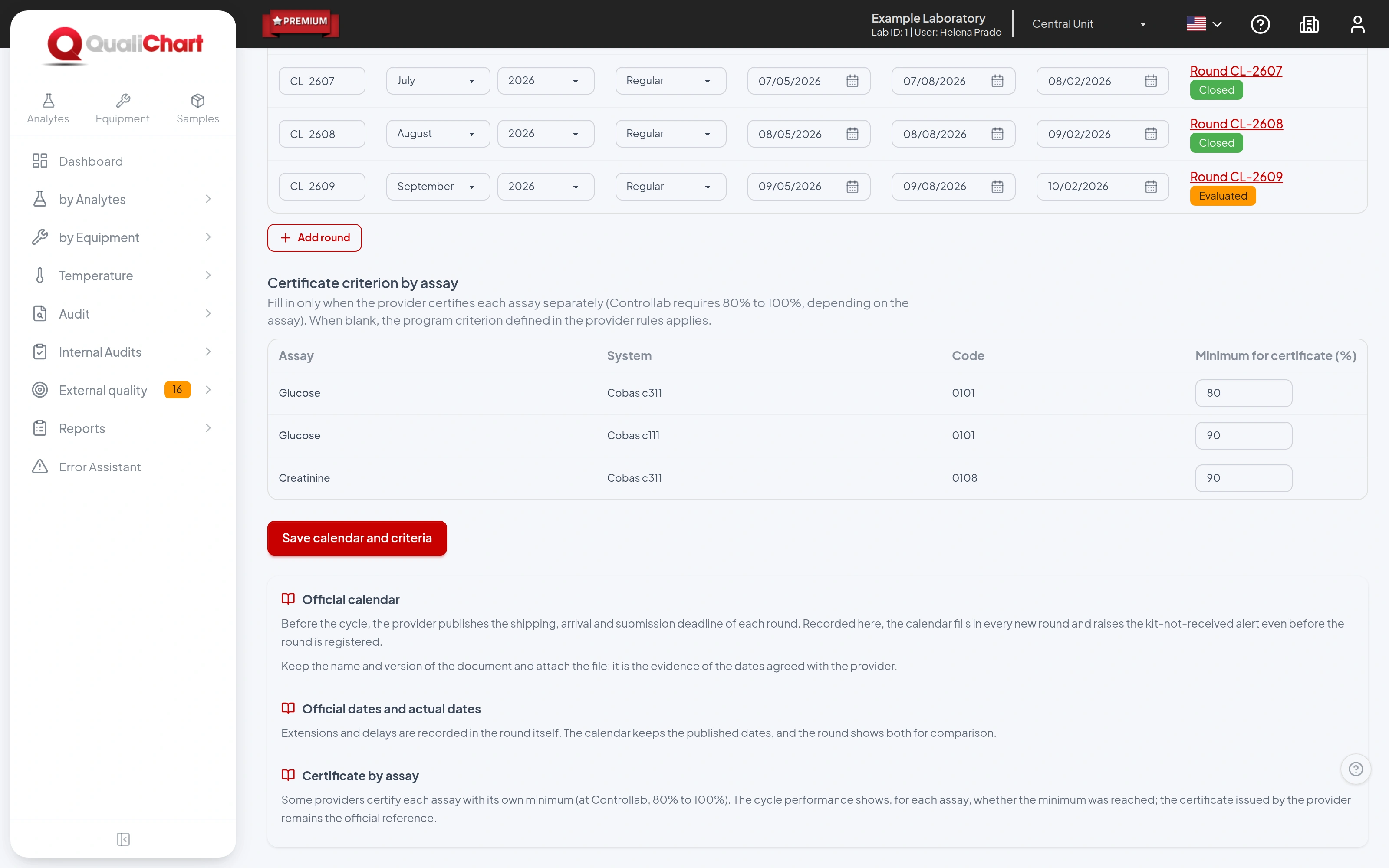
When the provider certifies each assay with its own minimum, enter in Certificate criterion by assay the minimum for certificate (%) of each assay submitted to the provider. Left blank, the program criterion defined in the provider's rules applies. The minimums are kept in the cycle, with the same reference as the calendar, and a new cycle starts with those of the previous one for review.
7. Follow rounds and pending items
In External quality › Rounds, the pending items panel groups by type what needs attention in the unit. Each item leads to the right screen and shows the deadline or since when it is pending. The total also appears in the side menu.
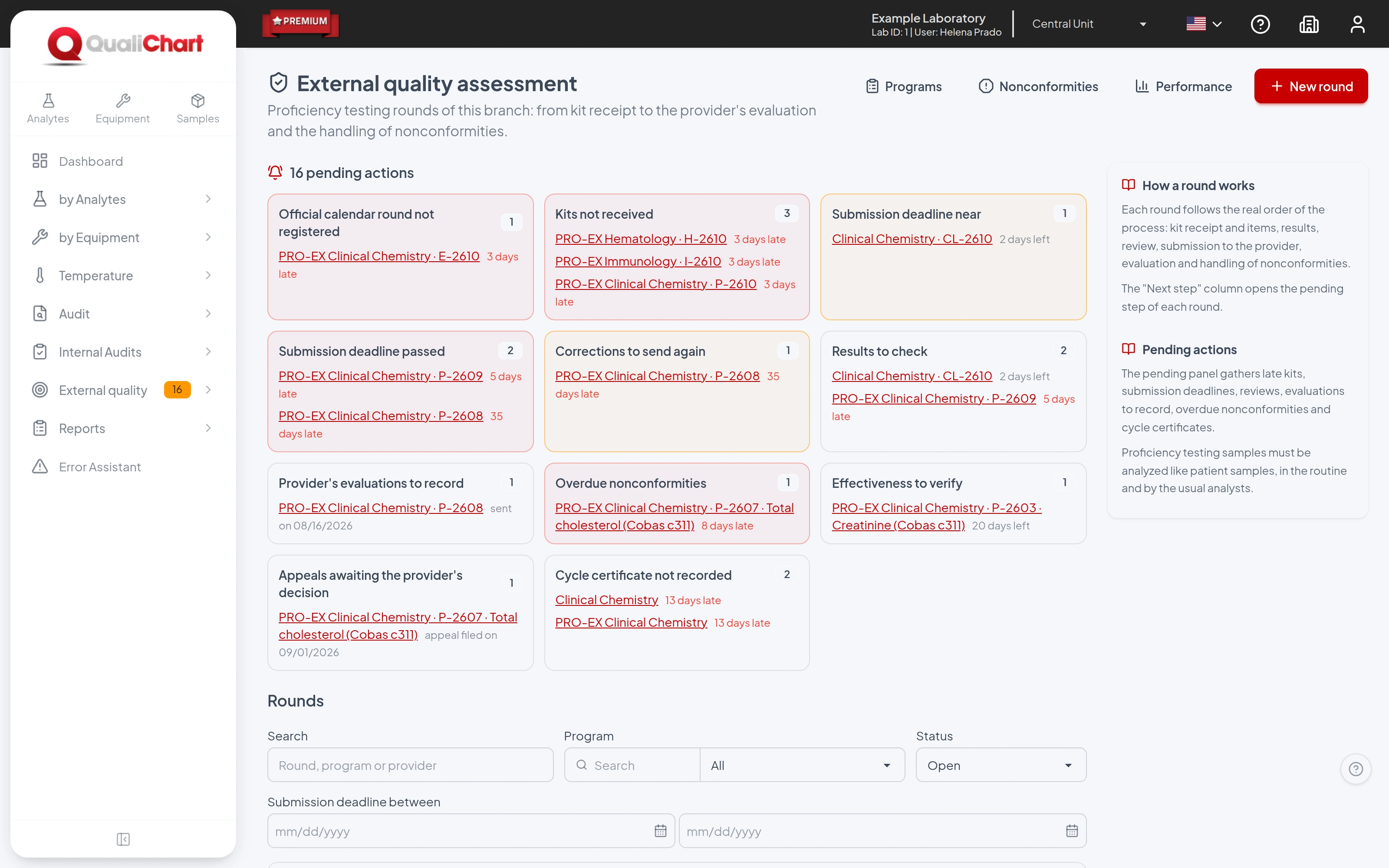
Below the panel, the table shows each round with the program, the Next deadline, the status, the Next step, the acceptable rate and the open nonconformities. The next deadline is the earliest deadline among the items still open, highlighted when overdue or close, and the next step is a direct link to the pending stage. Filter by text, program, status and submission deadline; the status starts at Open.
| Status | Meaning |
|---|---|
| Awaiting kit | Round registered; the kit has not arrived or the virtual material has not been accessed yet. |
| Kit received | The receipt was recorded; the items or results are missing. |
| In analysis | Expected assays have no result or, with the check required, results are awaiting the check. |
| Checked | All expected assays have a checked result and some results have not been sent in the current version, including corrections to resend. |
| Submitted | Everything that goes to the provider was sent in the current version; the provider's official evaluation is missing. |
| Evaluated | The provider's evaluation of every submitted result was recorded. |
| Closed | Round completed by the closing action. |
| Missed | The laboratory did not analyze or did not submit on time, with or without a justified absence. |
| Cancelled | Cancelled by the provider or registered by mistake; it does not count in performance. |
8. Register the round
- Click New round and choose the program. Programs without analytes do not appear.
- In Round, enter the identifier used by the provider, the Round type and the Reference month, the provider's reference month, which defines the cycle in which the round counts.
- In Material and deadlines, choose Physical kit, with samples sent by courier, or Virtual material, with images or cases on the provider's website. Enter the kit's shipping and expected arrival dates, or the date the virtual material was released.
- Check the Submission deadline. It follows the program's due day until you edit it.
- In Items, register the label codes and, in each item, the expected assays. All active program analytes come checked. More data holds the lot, storage and the item's own deadline.
- Click Register round. The identifier cannot repeat within the same program.
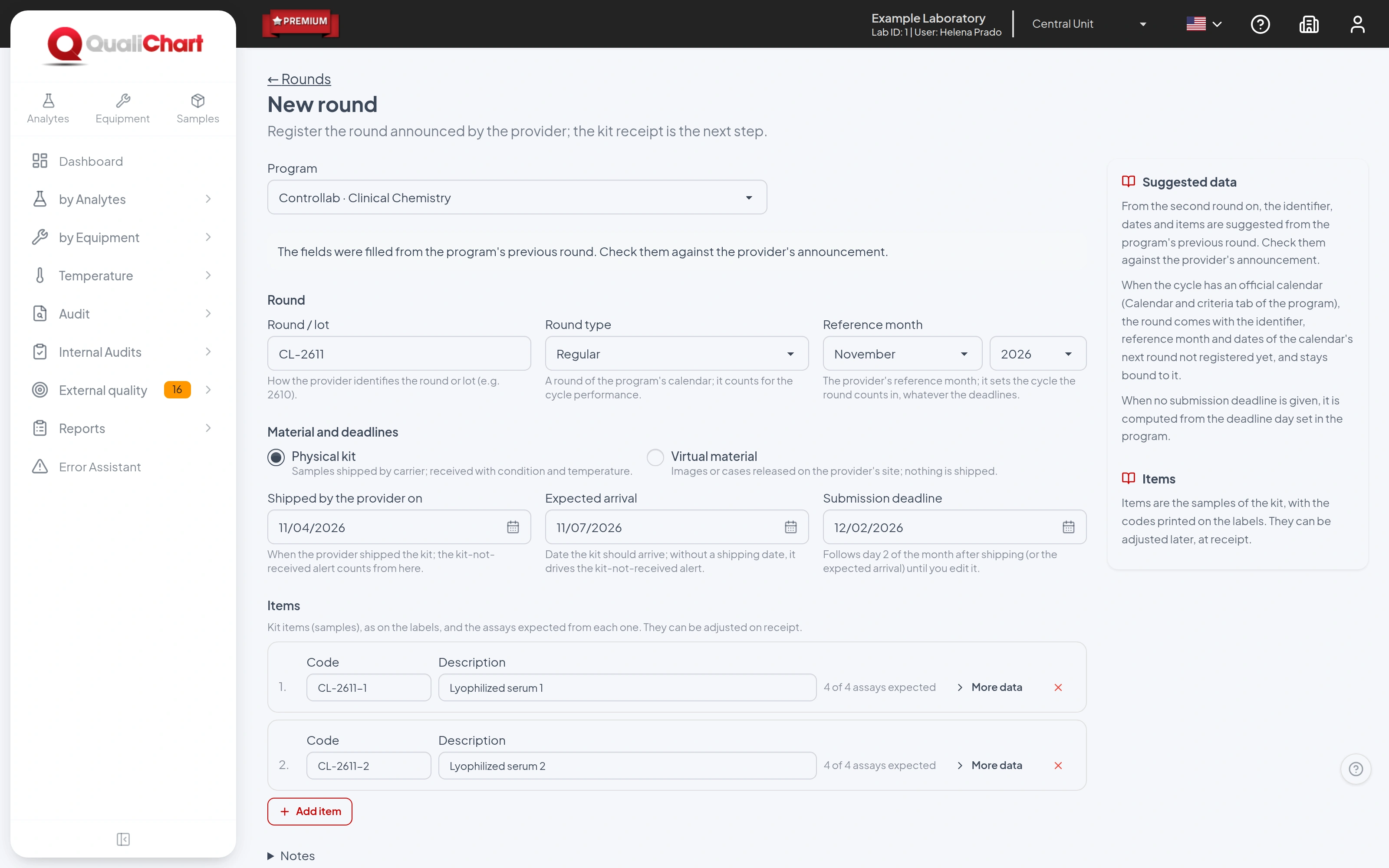
From the second round on, the identifier, reference month, material, dates, deadlines and items are suggested from the previous round; check them against the provider's announcement. When the cycle has an official calendar, the new round comes with the data of the next calendar round not yet registered and is linked to it.
- Regular: a round of the program's calendar.
- Recovery: a kit sent by the provider to replace a regular round that was lost or had rejected material. Choose the regular round in Recovers round; the reference month is the same, and the items that were not rejected come filled in.
- Educational: does not count in cycle performance.
| Date | What it is for |
|---|---|
| Reference month | Places the round in the provider's annual cycle, used in performance and in the certificate. |
| Shipped by the provider on | Kit shipping. The kit not received warning appears when the provider's deadline counted from it has passed. |
| Expected arrival | Without a shipping date, the kit not received warning appears at the end of this day. |
| Released by the provider on | Virtual material: start of access on the provider's website; there is no kit not received warning. |
| Submission deadline | Basis for the due soon and overdue warnings and for flagging late submissions. |
| Item submission deadline | Exception for one material; left blank, the round's deadline applies. The next deadline is the earliest among the items still open. |
| Use until | End of stability after preparation; makes the analysis time mandatory. |
9. Receive the kit and check the items
The round page shows at the top the reference month, material, dates, next deadline and the Round report button. Just below are the stages Receipt and items, Results, Check, Submission, Evaluation and Nonconformities and closing, with the current stage highlighted. The Next step card says what to do, and the warnings flag a late kit, a deadline that is close or overdue, a correction to resend and problems with the material.
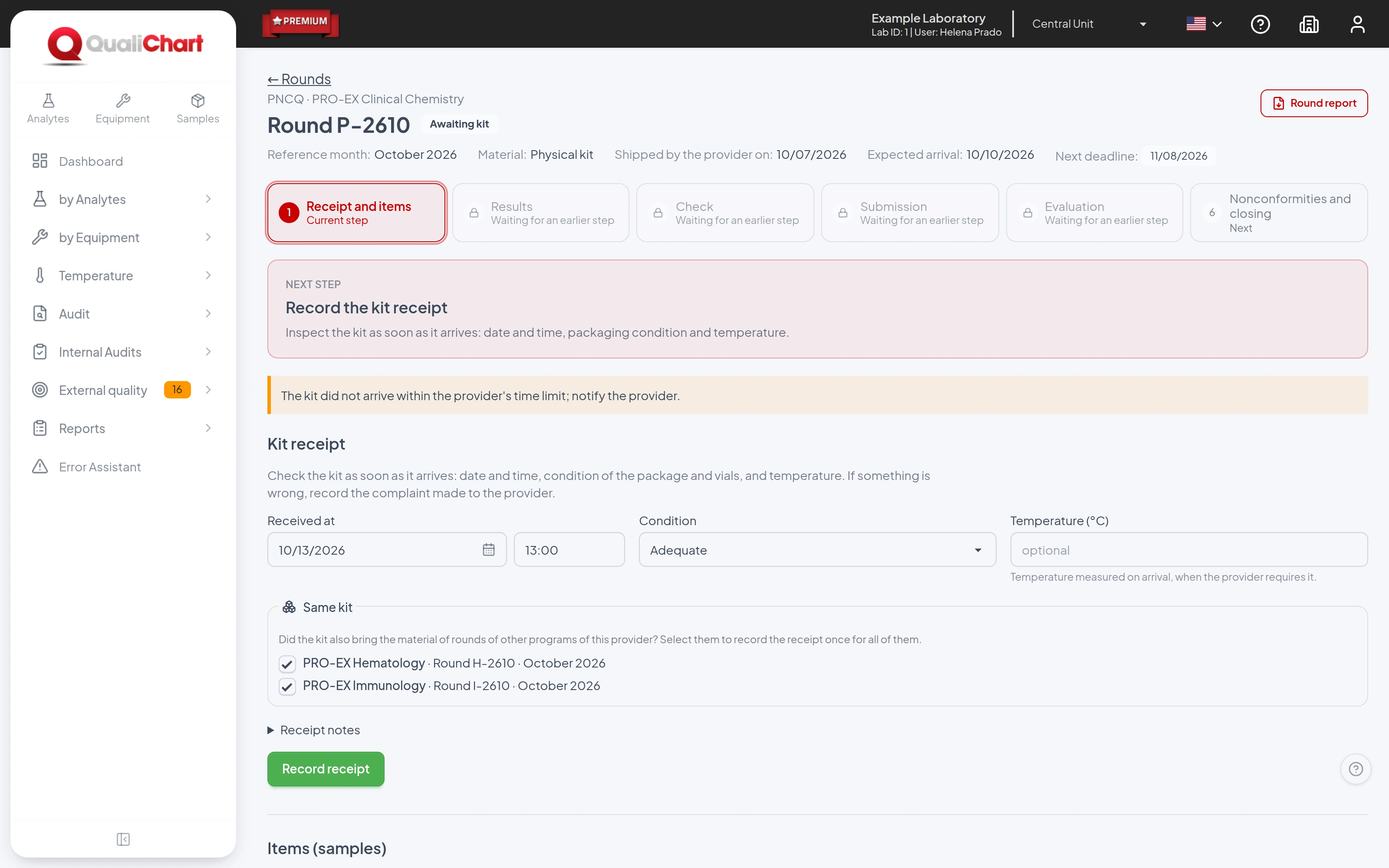
- Check the kit as soon as it arrives and record Received at, with date and time, the Condition and, when the provider requires it, the Temperature (°C). The conditions are Adequate, Damaged packaging or vial, Incomplete kit and Inadequate temperature.
- Any condition other than adequate requires the Complaint to the provider, with the problem and the contact made: date, channel and protocol.
- Click Record receipt. Until results are entered, Correct receipt lets you adjust the data.
For virtual material, the stage is called Access to the material: record the date the material was accessed and click Record access to the material.
When one box brings the material for rounds of several programs from the same provider, check in Same kit the rounds of the other programs that arrived together. The receipt is recorded once for all of them, with the same date, condition, temperature and complaint. Register the other programs' rounds first so they appear in the list.
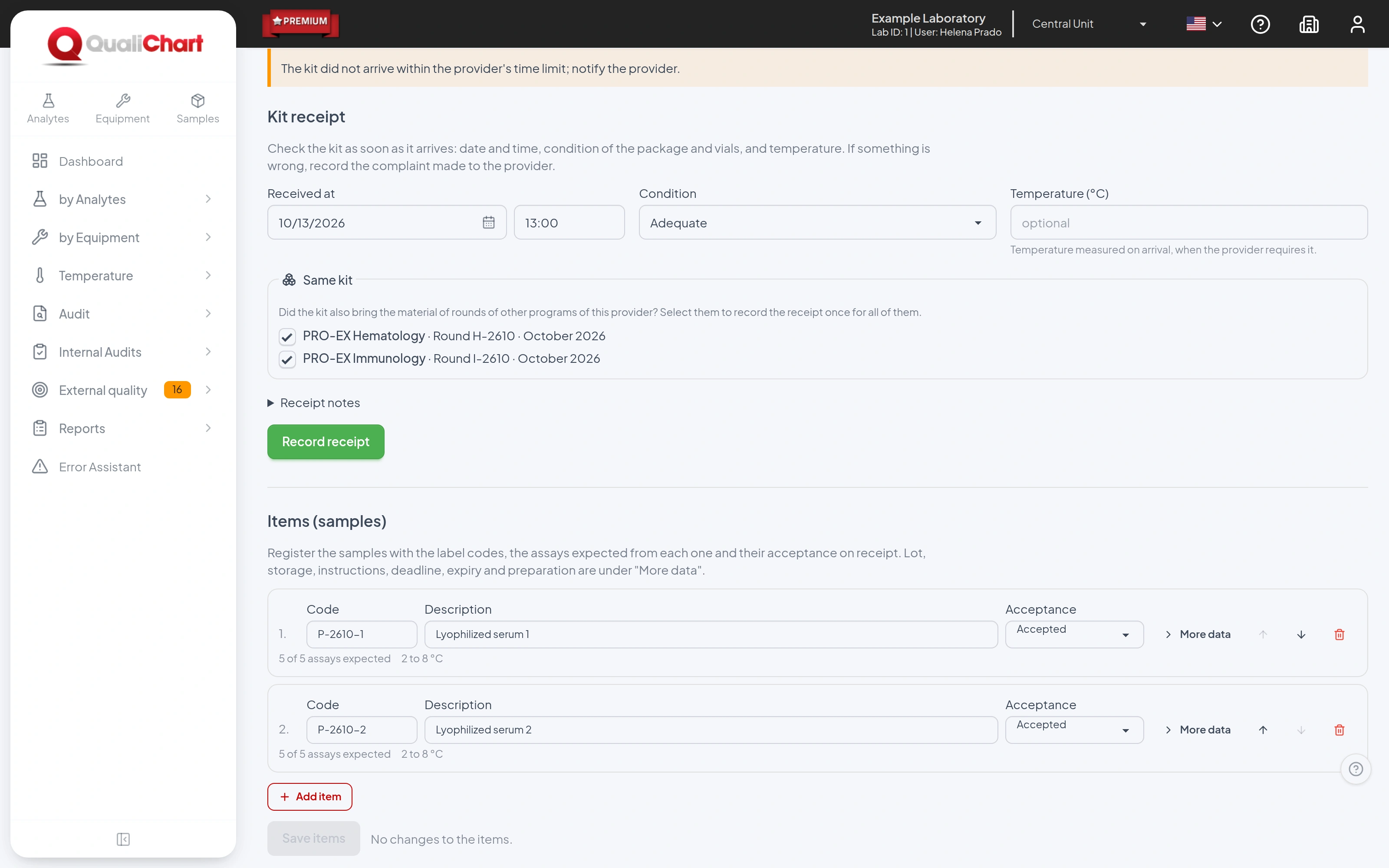
Items and material acceptance
In Items (samples), each item has the label code, the description, the acceptance and the expected assays, that is, the analytes the provider expects for that sample. More data holds the lot, storage, its own deadline, expiry, the replaced item, preparation and stability and the provider's instructions.
- Mark each item as Accepted, Accepted with reservation or Rejected. For a reservation, describe what was observed and why the material can still be used; for a rejection, the reason and the contact with the provider.
- When the provider sends the replacement, click Register substitute item on the rejected item. The new item is linked to it and inherits the expected assays.
- Click Save items.
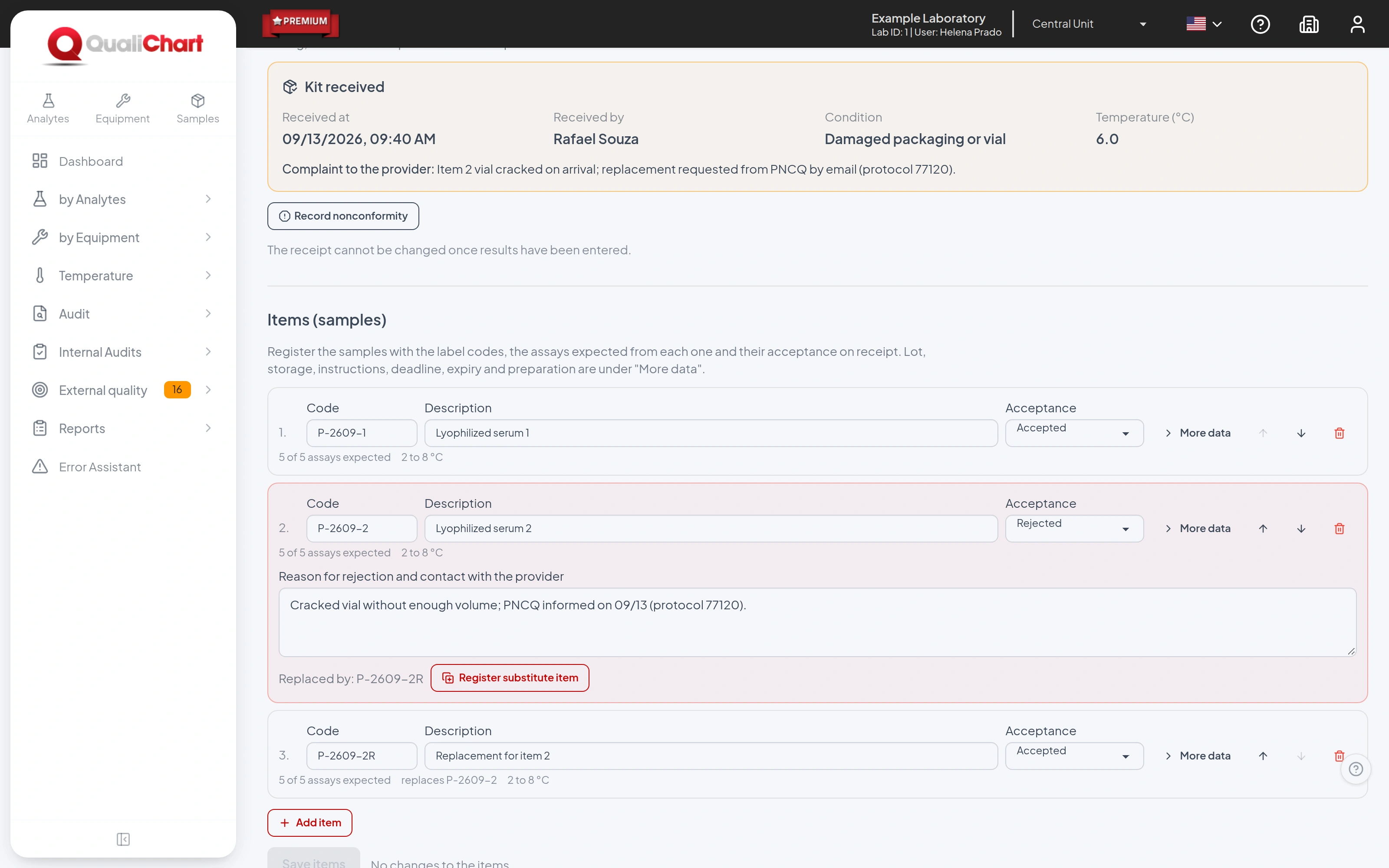
A rejected item does not receive results. While there is no substitute, the round shows the rejected material without substitute warning. With material accepted with reservation or rejected, the screen offers Record nonconformity with the round and the Receipt problem origin already filled in.
10. Enter the results
The grid has one row per analyte and instrument and one column per item, with each item's deadline and acceptance. Only expected assays receive a result: rejected items appear as rejected material, and expected cells still empty are highlighted.
- In Analysis, enter the date and the analyst. They apply to new results, and Apply date and analyst to all results repeats them on the others.
- Type the number in the laboratory unit. Below the cell appears the value sent to the provider, converted by the factor and with the decimals of the provider's form. For qualitative assays, choose the scale option.
- Click Save.
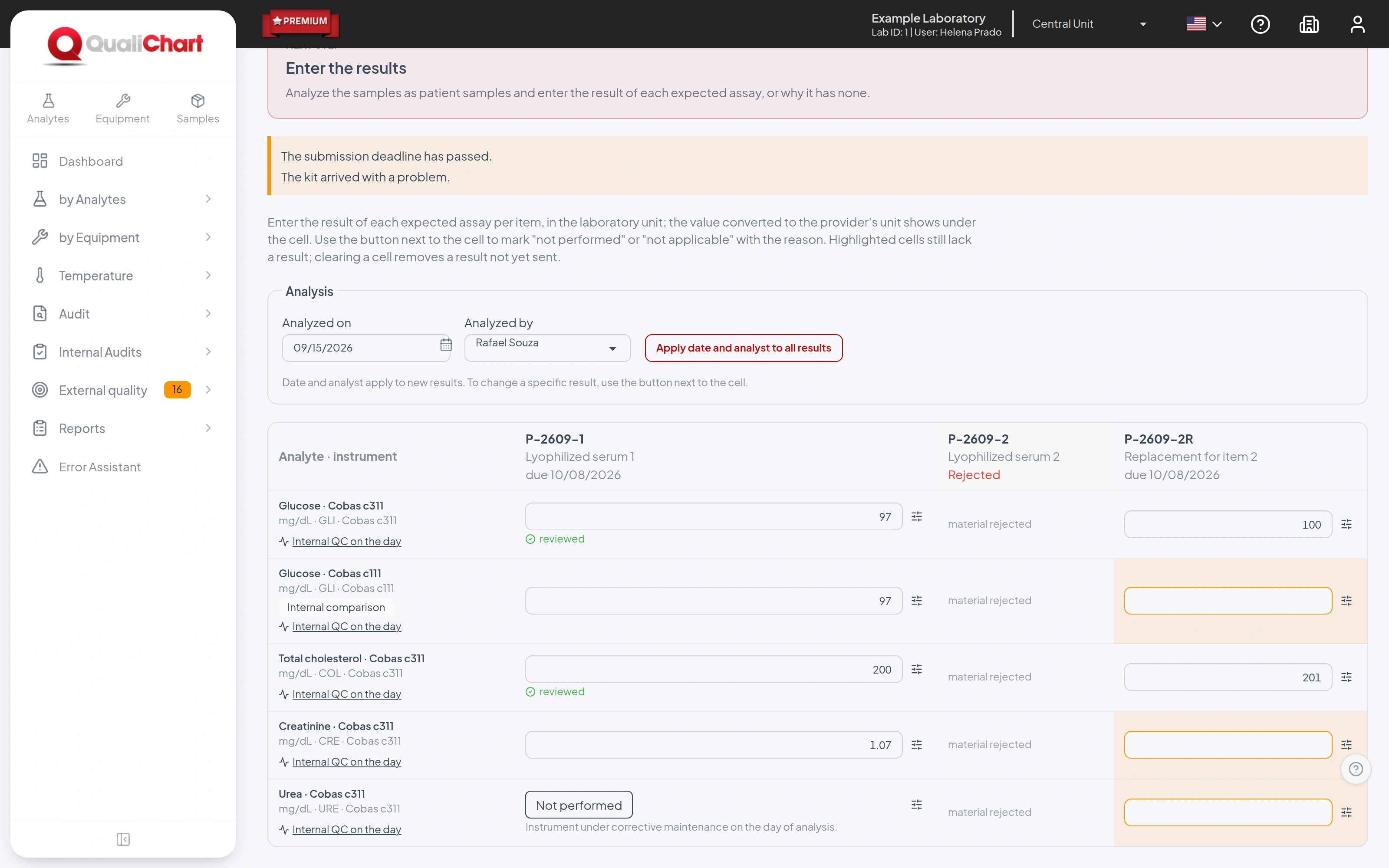
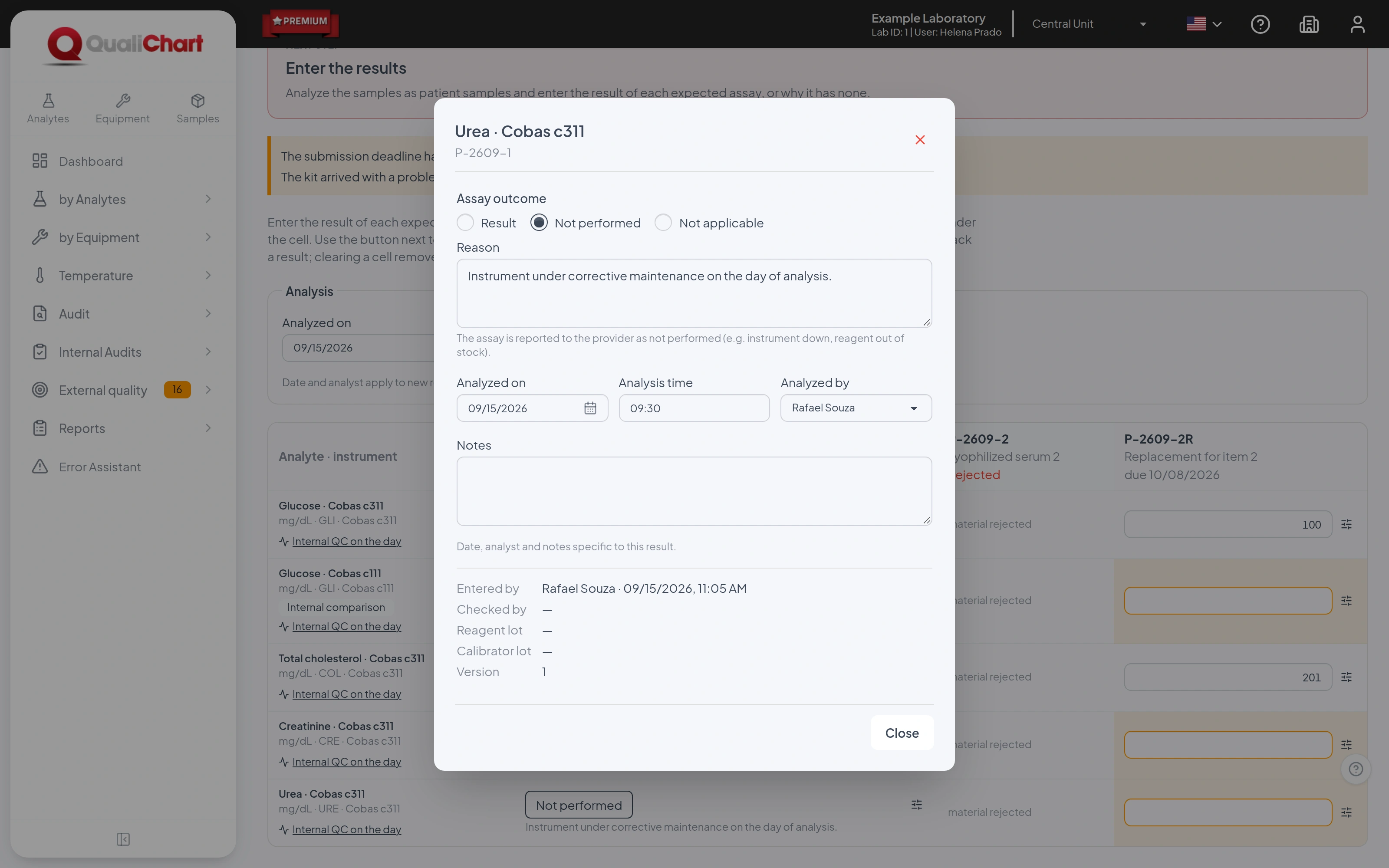
The button next to each cell opens the Assay outcome: Result, Not performed or Not applicable. Not performed is reported to the provider, for example with the instrument down; Not applicable is not submitted. The reason is required, and the window keeps the date, time, analyst and notes of that result.
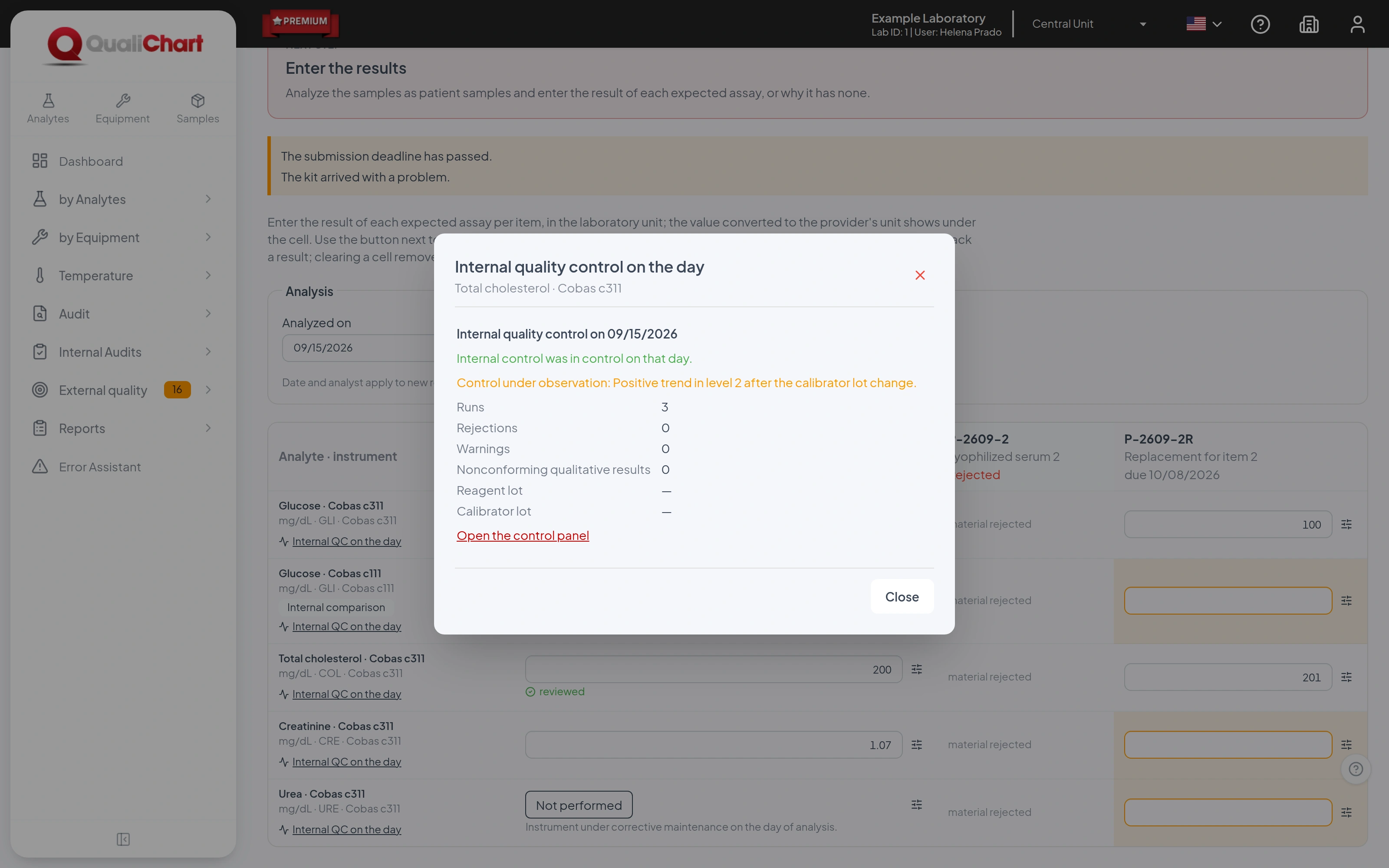
The Internal quality control on the day link on each row shows the runs, rejections, warnings and reagent and calibrator lots on the date of analysis, and whether the control was under observation. With no runs that day, it points to the closest one within 7 days.
- The date of analysis cannot be in the future or before the receipt. The time is mandatory for items with Use until.
- A value 5 times or more above or below the last known target triggers a warning to check the unit and decimal separator.
- A submitted result cannot be deleted. Changing it requires the Reason for correction and creates a new version, flagged for resending.
- A result already evaluated by the provider is locked.
11. Check the results
With the check by another person required in the policy, someone who did not enter the result checks it against the instrument report. Results you entered show as awaiting another person.
- Select the results and click Review selected, or check all pending results at once.
- Click Download transcription sheet to generate the PDF with the values as the provider's form asks for them, in the portal's order.
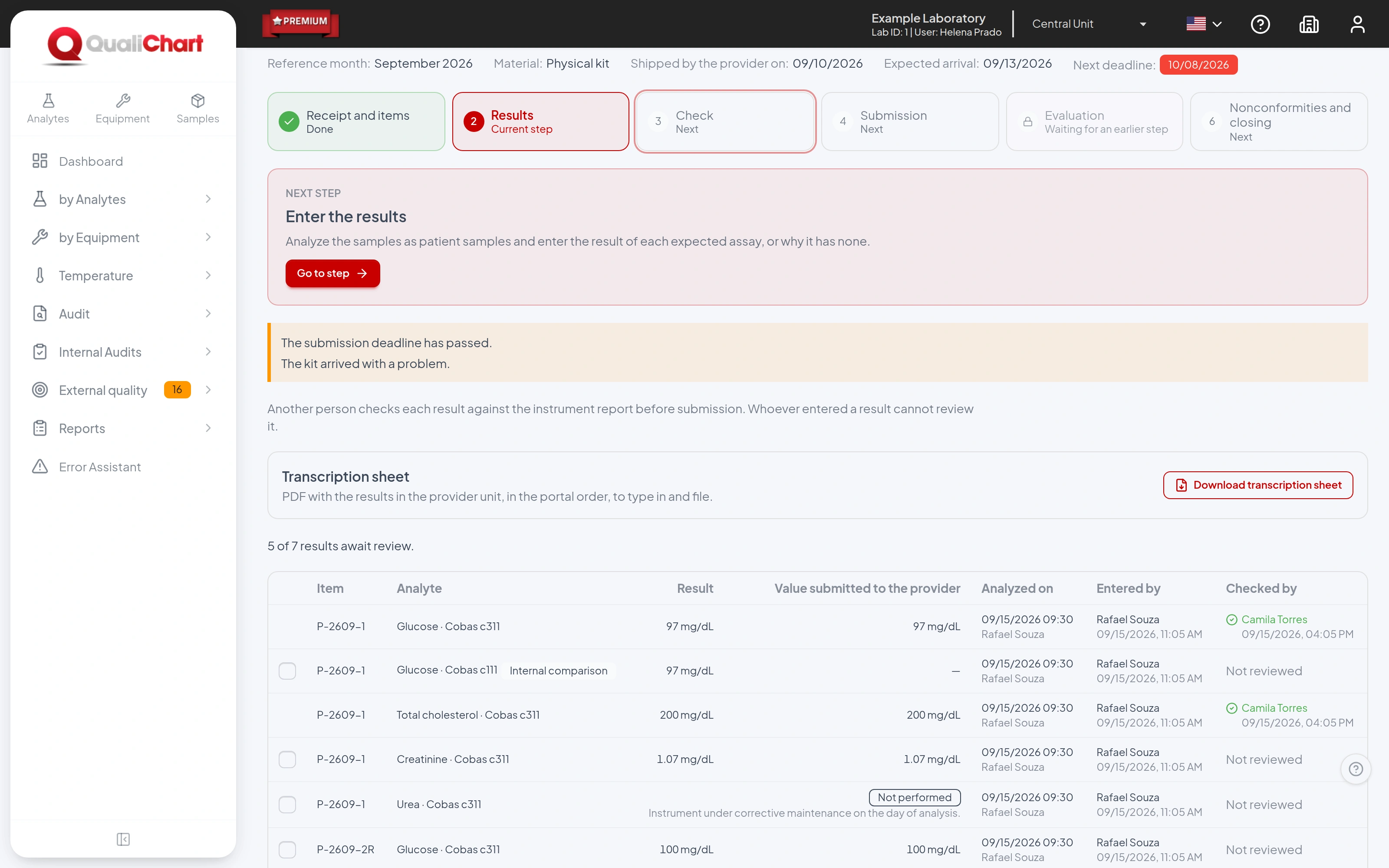
The table shows item, analyte, laboratory result, value sent to the provider, date of analysis, who entered and who checked, and identifies internal comparisons and versions to resend. Changing a result undoes its check. Without the requirement in the policy, the check remains available but does not block the submission.
12. Record the submission to the provider
- Enter the results in the provider's channel using the transcription sheet.
- In Results to send, check the selected results: by item, the ones not yet sent in the current version are listed, including assays not performed. With the check required, unchecked results cannot be selected. Internal comparisons and assays that do not apply are not submitted.
- Enter Submitted at, with date and time, and the Submission channel: Provider's portal, E-mail or Other channel.
- Record at least one piece of evidence: the protocol, the submission receipt (screenshot or PDF up to 20 MB) or, by marking that the channel gives no protocol or receipt, the reason.
- Click the record button, which shows how many results will be submitted and, when something is missing, what to complete.
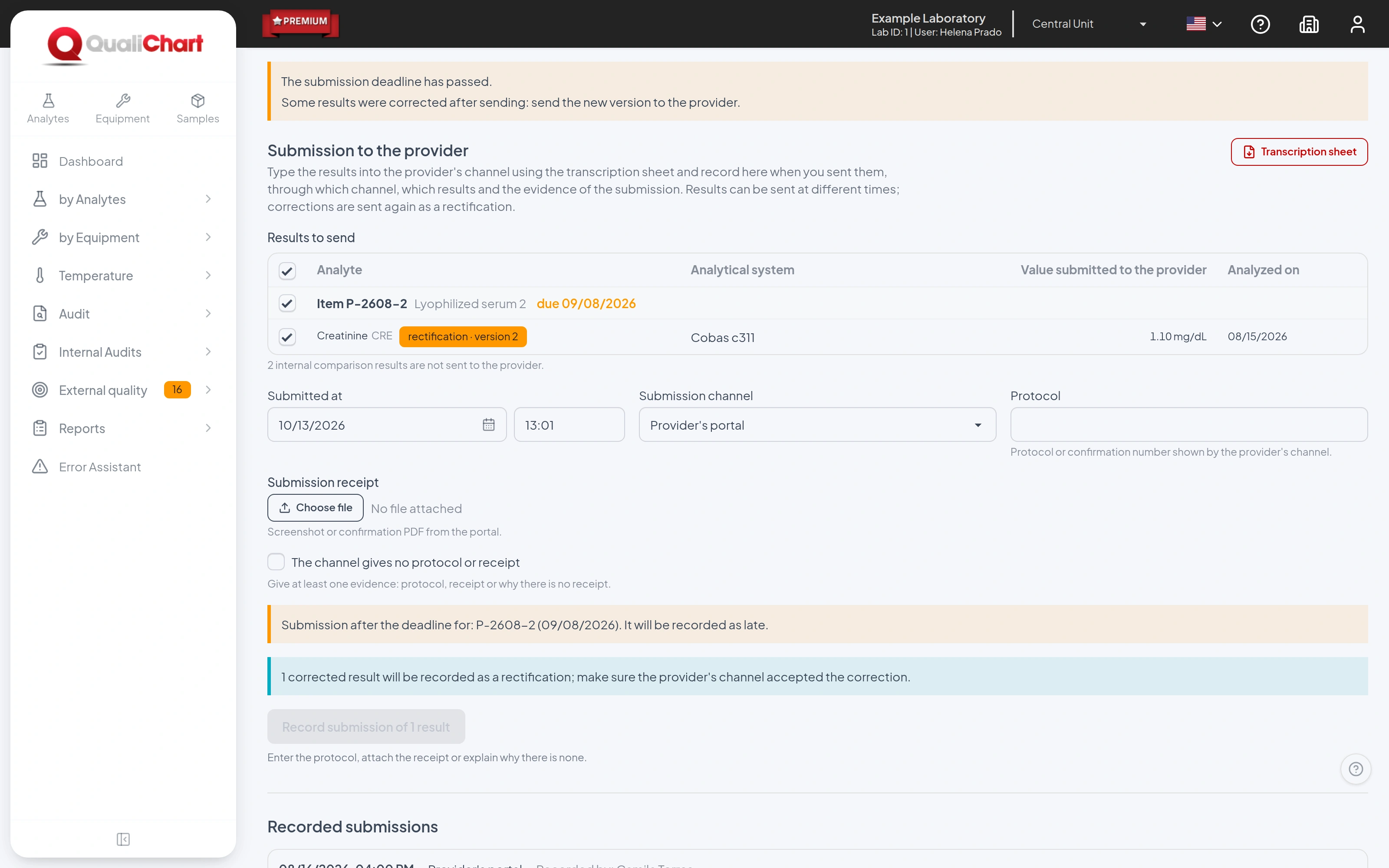
Each submission freezes a copy of the results sent, with version, item, analyte, code, system, method, reagent, outcome, value, unit and decimals. The copy is kept in Recorded submissions, with the channel, the protocol or reason, the receipt and who recorded it.
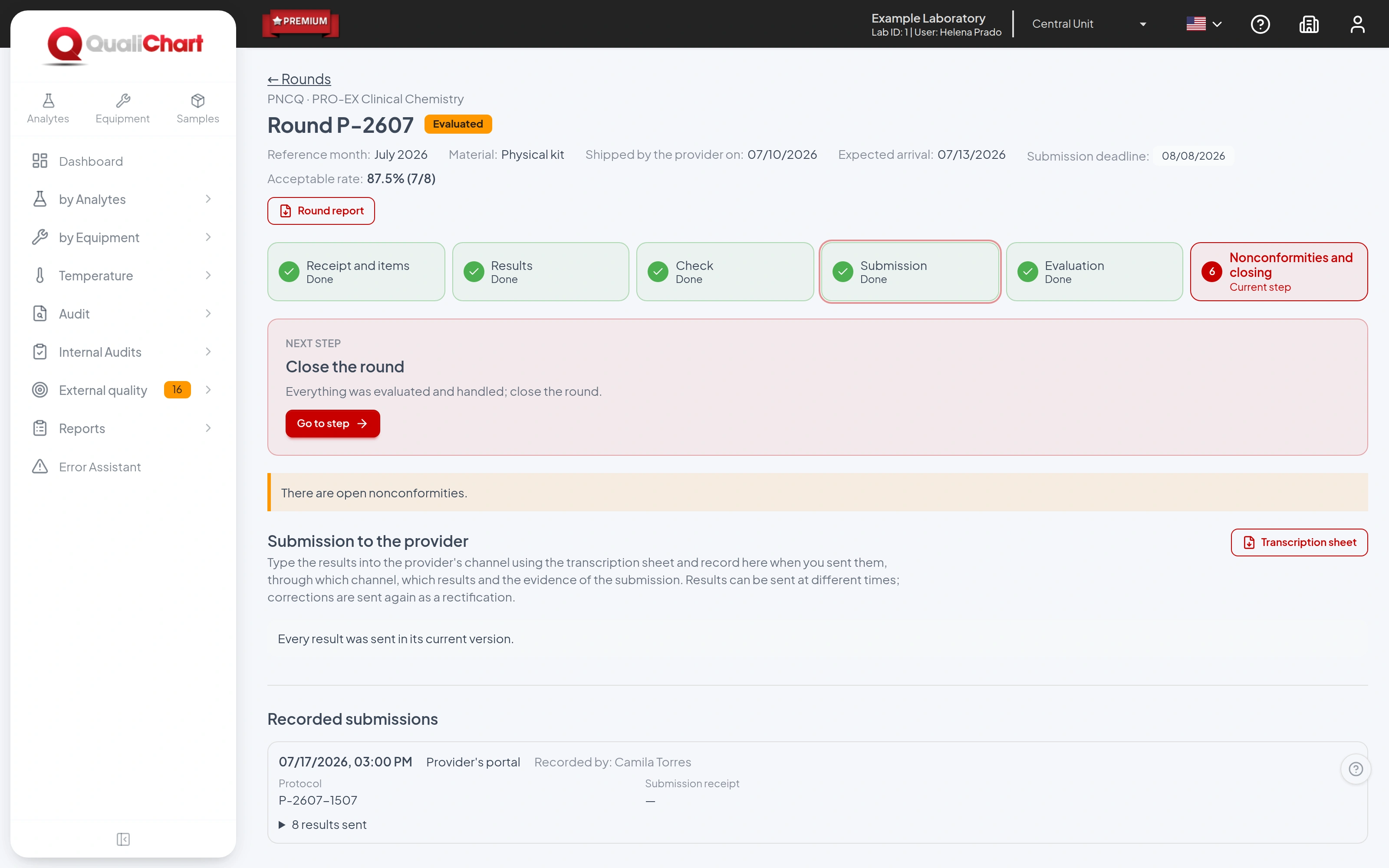
Results can be submitted at different times, and a submission after the item's deadline is flagged as late. Resending a correction is recorded as a Rectification: confirm that the provider's channel accepted the correction. The round becomes Submitted when every expected assay that goes to the provider was sent in the current version; while one is missing, participation is partial.
13. Record the provider evaluation
When the provider releases the round report, open the Evaluation stage.
- Enter Evaluation released on. The date is required to record grades, cannot be in the future or before the last submission and starts the appeal period.
- Enter the acceptable rate reported by the provider, to compare with the calculated one, and attach the Evaluation report (PDF).
- For each submitted result, transcribe from the report the target, the standard deviation, the acceptance criterion, the number of participants, the provider's index and the Grade. Providers that grade by Z-score ask for target and standard deviation; those that grade by deviation index, target and limit or range.
- For qualitative and semiquantitative assays, enter the expected result. For descriptive assays and assays reported as not performed, record only the provider's grade.
- Click Save the evaluation. Save report data stores only the date, the rate and the PDF.
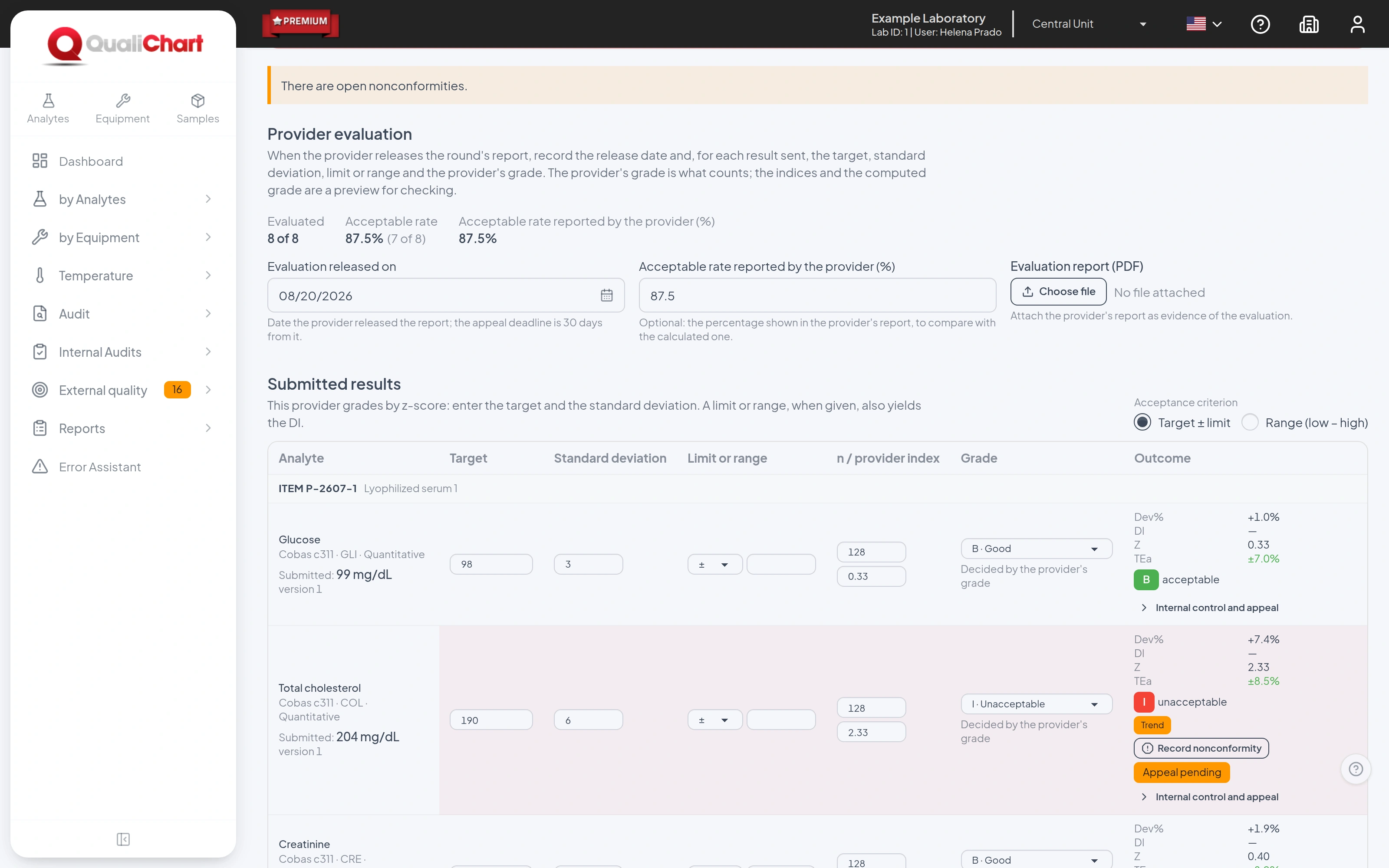
The official grade is the provider's. As you type, the indices and the grade calculated by the round's rules appear as a preview, to compare with the report. The preview only preselects the grade: what is recorded is the chosen grade, which must be the one in the report. Once saved, the row shows Decided by the provider's grade and, when the grade differs from the calculated one, shows the calculated grade.
| Index | Calculation | Reading |
|---|---|---|
| DRM (relative deviation from the mean) | (result − target) ÷ |target| × 100 | Signed percentage deviation, compared with the TEa. |
| DI (deviation index) | (result − target) ÷ limit; with a range, it uses the half on the result's side | |DI| ≤ 1 is within the provider's criterion. |
| Z (Z-score) | (result − target) ÷ group SD | Used by providers that grade by standard deviations. |
| TEa (total allowable error) | Percentage and absolute TEa from the analyte setup, in the provider's unit; the larger applies | Within the TEa when |DRM| ≤ TEa. Informative in the provider's evaluation. |
The warnings are Near limit, for |DI| from the policy's warning index, Above TEa, Grade ≠ calculated and Trend, when deviations stayed on the same side of the target in the last consecutive rounds set in the policy. The items of one round count as one point. The TEa and the indices are for comparison and warnings; they never decide an official evaluation.
Each saved evaluation is noted, with the CEQ: prefix, in the comments of the control's last run. A result evaluated by the provider can no longer be changed in the Results stage; the evaluation can be corrected until the round is closed.
13.1 Internal comparisons
Each instrument linked in Compare with to a submitting system is evaluated automatically on the same item, with the target, standard deviation and limit or range recorded for that submission. With the check required in the policy, the comparison only happens after the result is checked. Since there is no provider grade, the provider's criterion decides, then the acceptable range and, finally, the analyte's TEa.
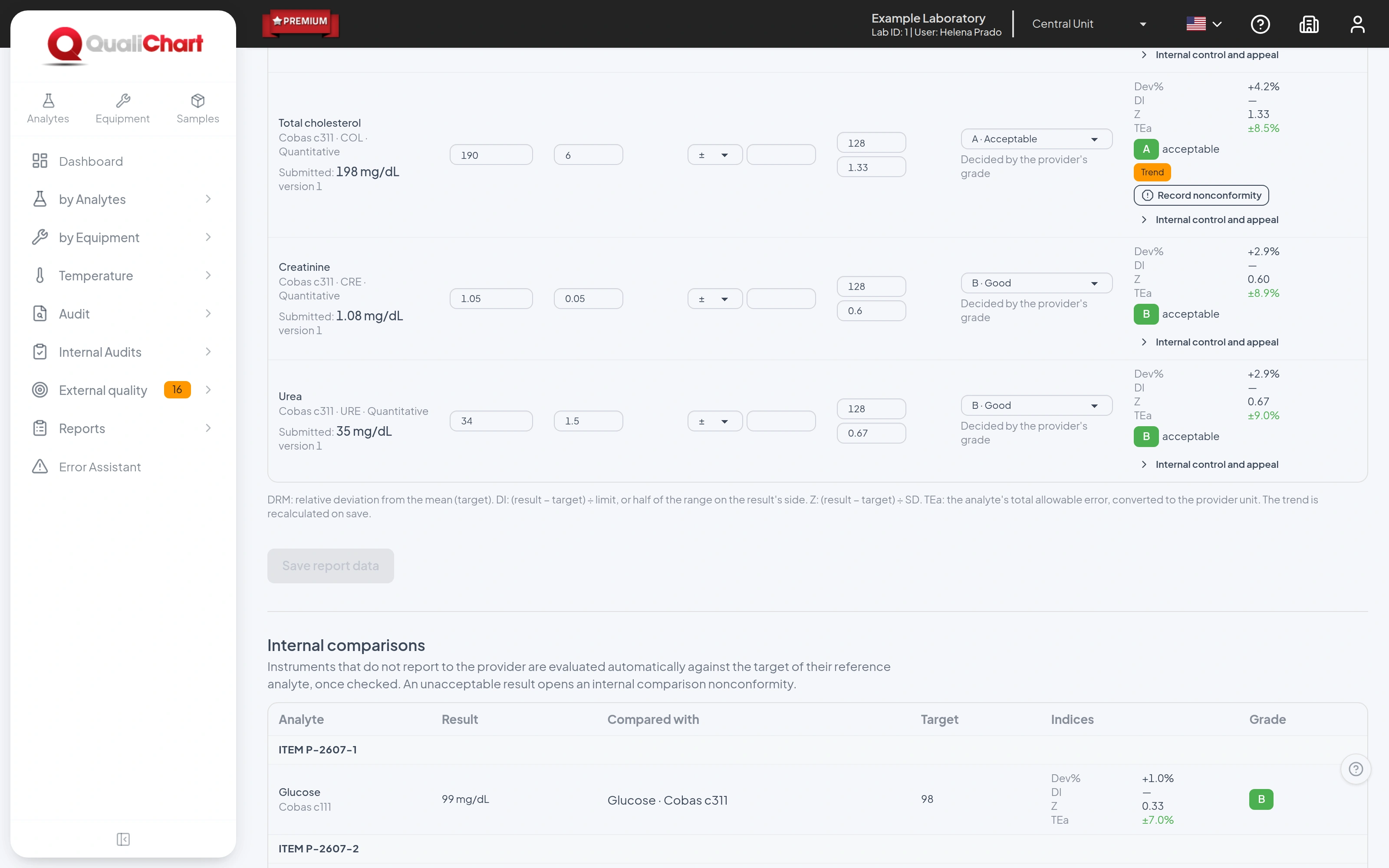
The read-only Internal comparisons table shows what each instrument was compared with, the target, the indices and the grade, or what is still missing for the comparison. An unacceptable internal comparison opens its own nonconformity. These evaluations do not enter the provider's acceptable rate and have no appeal, but they appear in performance by analyte.
13.2 Appeals
- If the laboratory disagrees with the evaluation, open the row details in Internal control and appeal, in the Evaluation stage, or use Appeals on the nonconformity page.
- Click Record appeal and enter the date, the justification and the document. The date cannot be before the evaluation release.
- When the provider answers, record the Provider's decision, with a date not before the appeal.
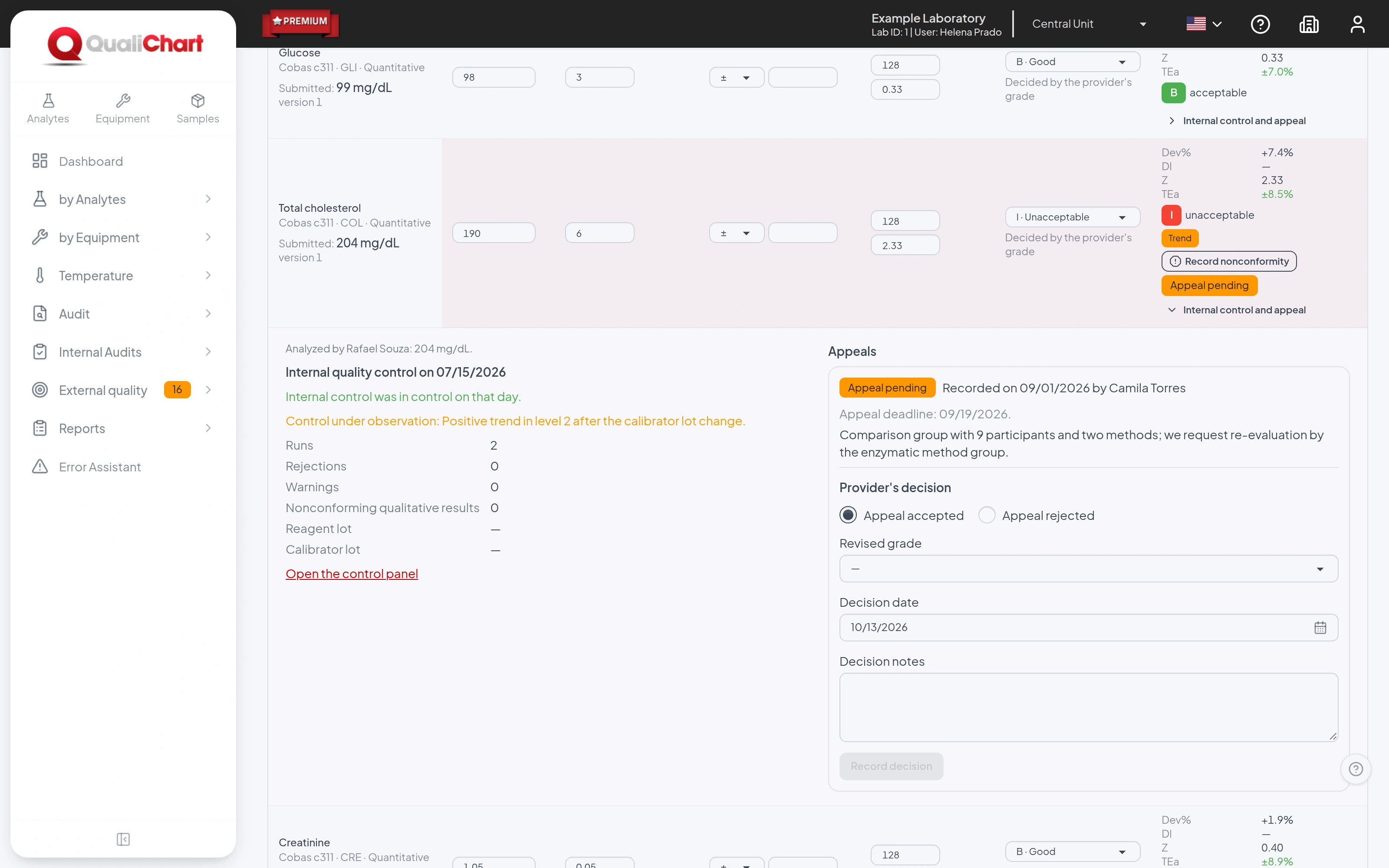
The deadline is counted from the evaluation release according to the round's rules; in the PNCQ template, 30 days. After it, the appeal is refused. An accepted appeal requires the Revised grade, which replaces the grade, while the original stays in the appeal, and recalculates the acceptance, the round's acceptable rate and the nonconformities. A rejected appeal keeps the grade. Each evaluation has at most one pending appeal, and internal comparisons have no appeal.
14. Handle nonconformities
When the evaluation is saved, each analyte and instrument with a counted unacceptable result automatically opens a nonconformity in the round, already linked to the results. The origin is Unacceptable result or Unacceptable internal comparison. A round marked as missed without a justified absence opens the Missed round origin.
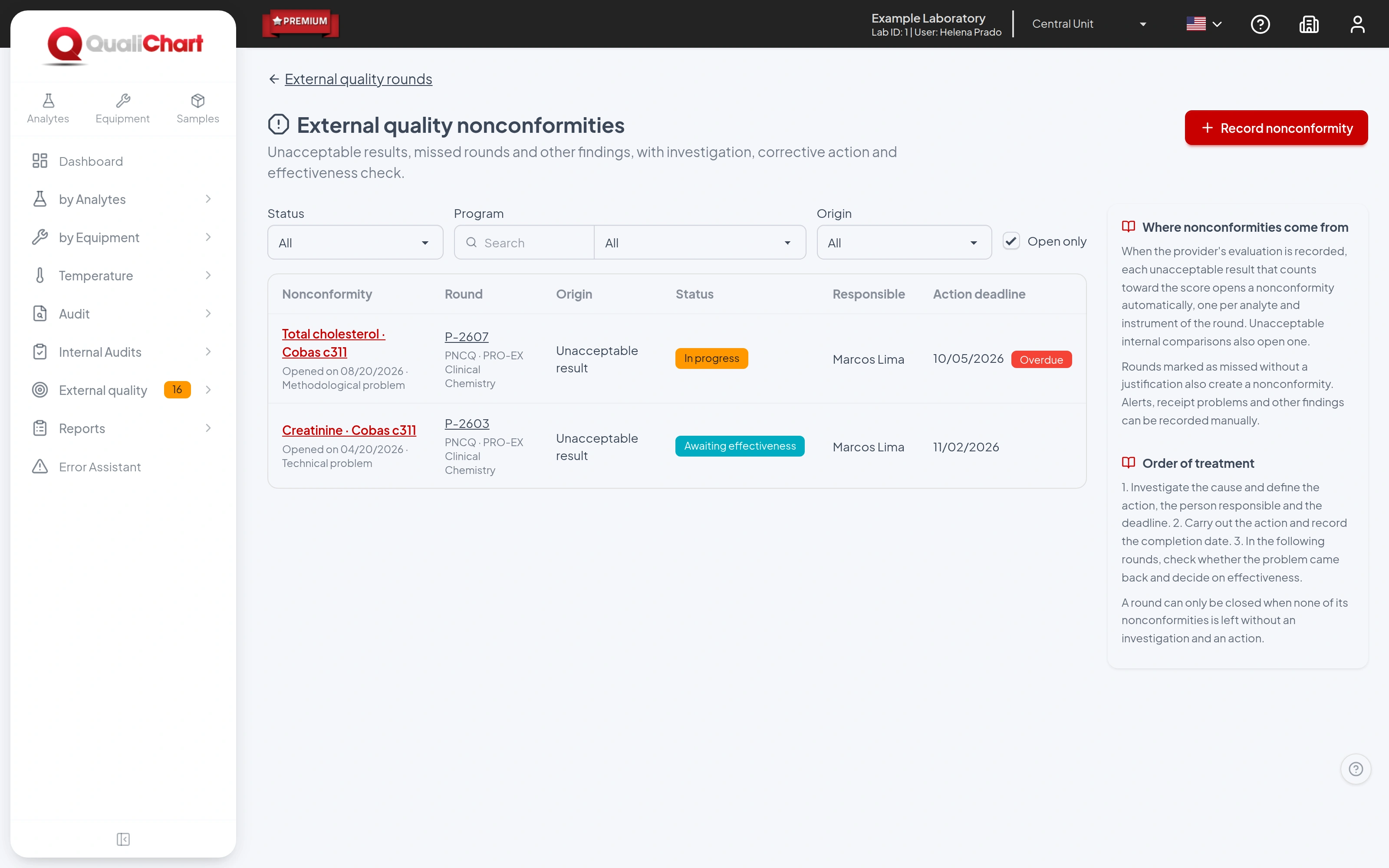
The list filters by status, program and origin, shows only open ones by default and highlights those overdue.
14.1 Manual registration
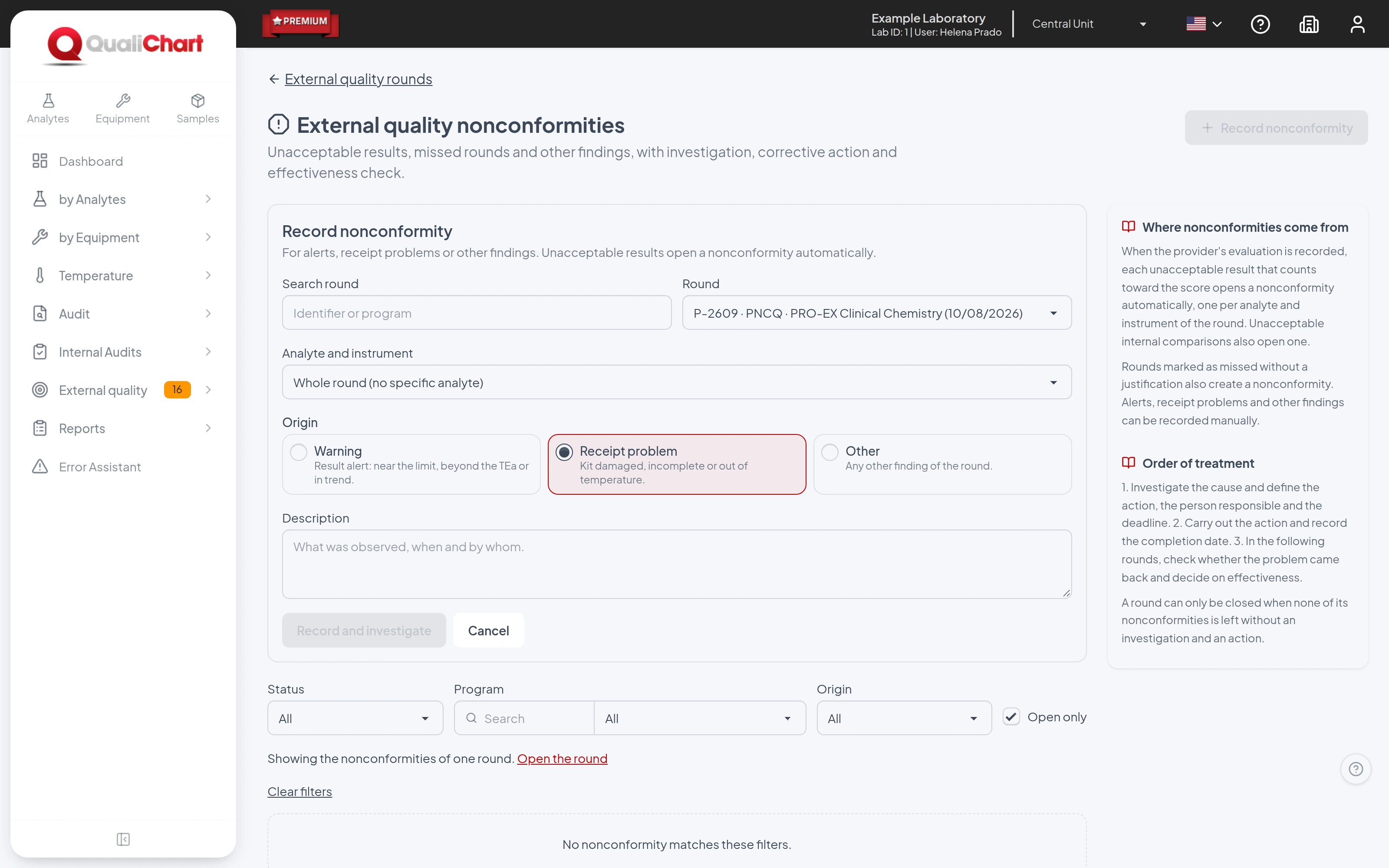
For warnings, receipt problems or other findings, use Record nonconformity on the row warnings or on the material with a problem: the round and origin come filled in. You can also open Nonconformities and click Record nonconformity:
- Search for and choose the round.
- Choose the analyte and instrument or the whole round.
- Choose the origin: Warning, Receipt problem or Other.
- Describe what was observed, when and by whom, and click Record and investigate.
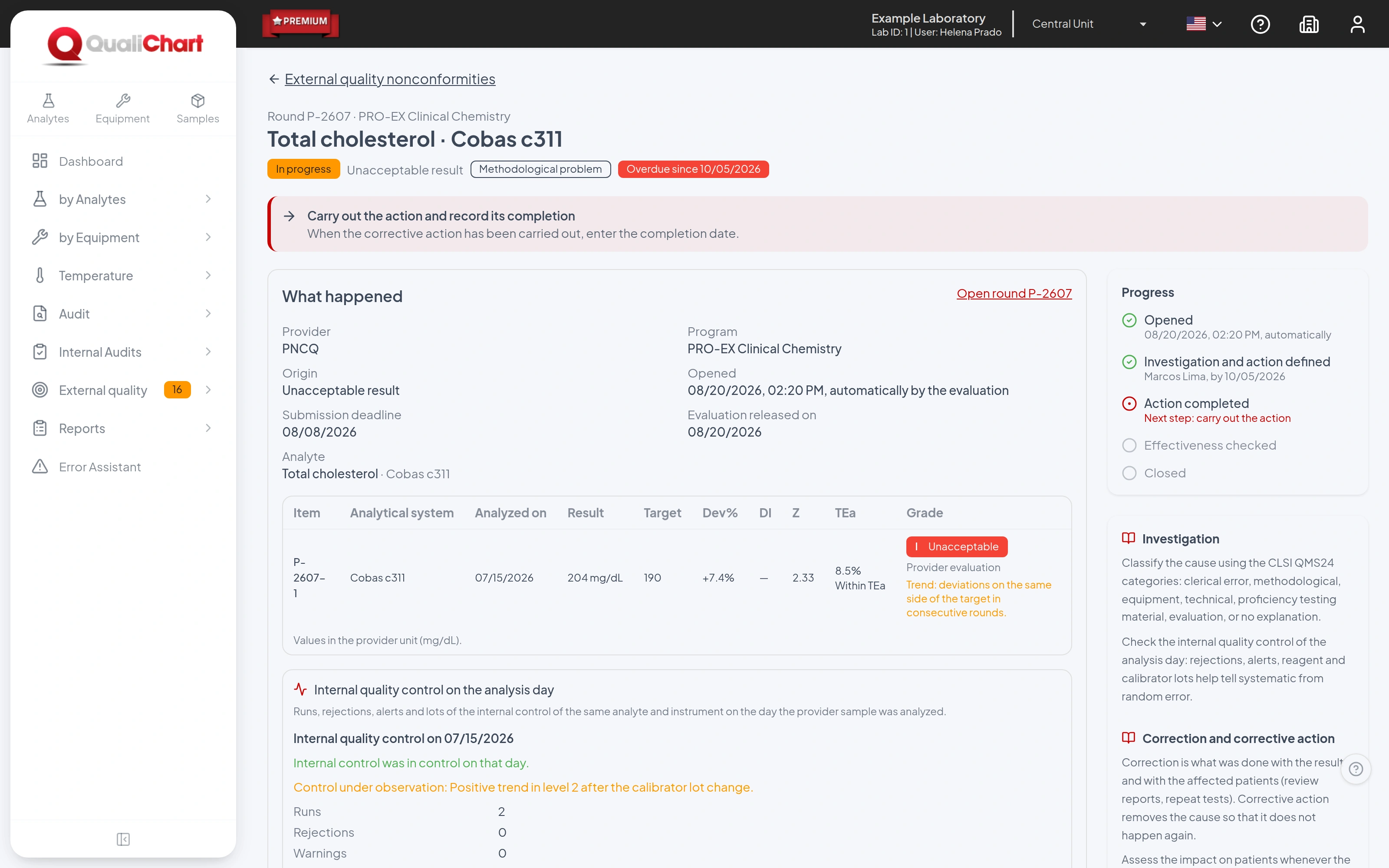
The nonconformity page shows the next step and, in What happened, the round, the analyte, the origin, who opened it, the results with target, indices, TEa, grade and warnings, and the internal control on the day of analysis, which helps separate systematic from random error. Progress follows the stages Open, Investigation and action defined, Action completed, Effectiveness checked and Closed, with dates and people responsible.
14.2 Investigation and action plan
In Investigation and action plan, record:
- the Category, the Root cause and the Catalog causes, the same catalog used in IQC rejections;
- the Impact on patients, which can be not assessed, no impact, possible or confirmed, with the review of reports or of the affected period;
- the Immediate correction, what was done with the result and the reports, and the Corrective action, what removes the cause;
- the Responsible, the Action deadline, the instrument intervention of the last 12 months and documents up to 20 MB.
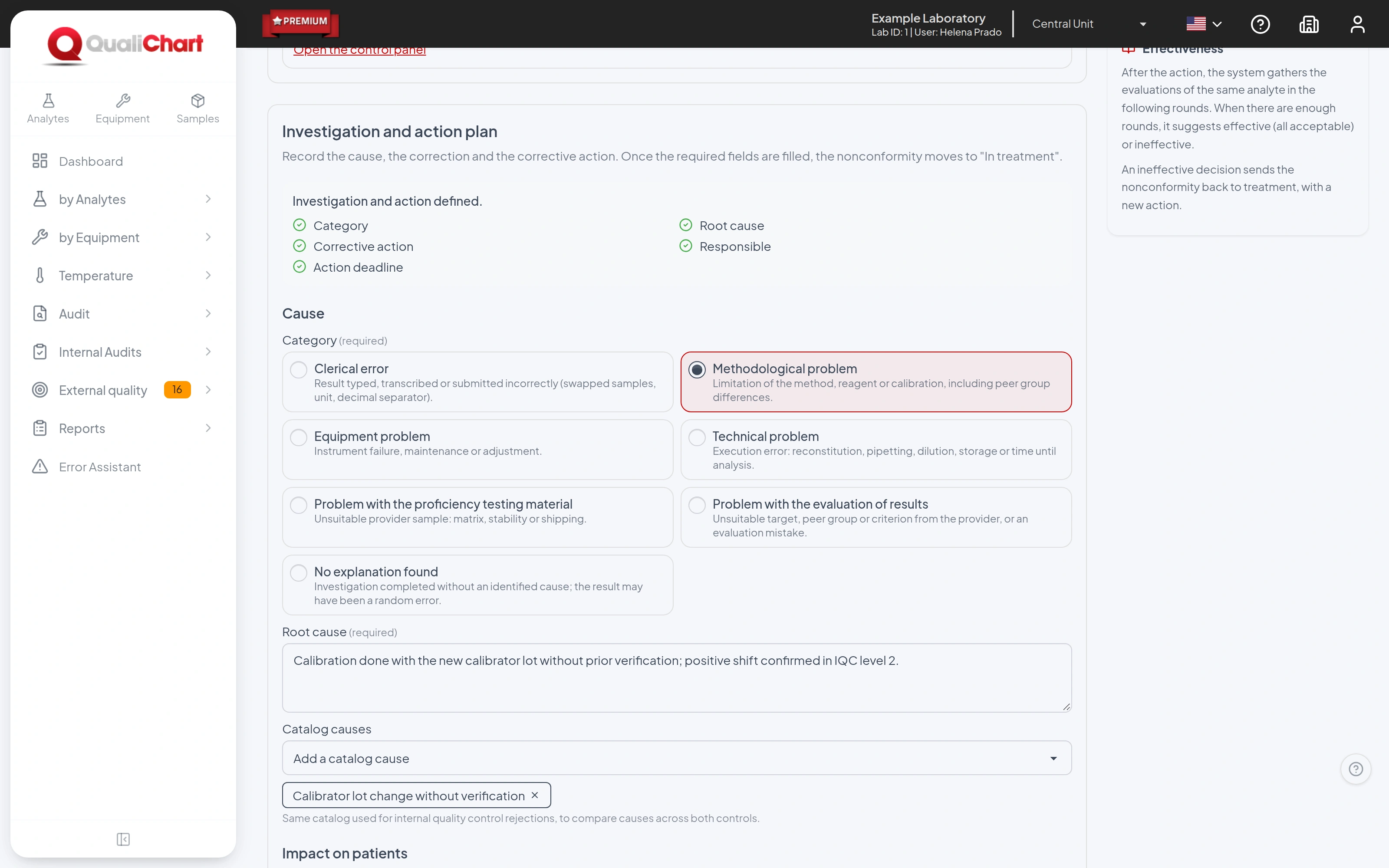
The list at the top of the form shows what is missing. With category, root cause, corrective action, responsible and deadline filled in, Save investigation moves the nonconformity to In progress. The investigation can be edited by users with Enter results or Approve and close, until closing.
| Category | When to use |
|---|---|
| Clerical error | Result typed, transcribed or sent with an error, such as swapped samples, unit or decimal separator. |
| Methodological problem | Limitation of the method, reagent or calibration, including a peer group difference. |
| Equipment problem | Instrument failure, maintenance or adjustment. |
| Technical problem | Execution error: reconstitution, pipetting, dilution, storage or time until analysis. |
| Problem with the proficiency testing material | Unsuitable provider sample: matrix, stability or transport. |
| Problem with the evaluation of results | Unsuitable provider target, group or criterion, or an evaluation error. |
| No explanation found | Investigation completed without an identified cause; the result may have been a random error. |
14.3 Action completion and effectiveness
- Once the action is carried out, enter the date in Action completion and click Record action completion. The nonconformity moves to Awaiting effectiveness.
- Effectiveness check gathers the analyses of the same analyte and instrument made after that date, already evaluated and counted. After the number of rounds in the policy, the system suggests Effective, when all were acceptable, or Ineffective.
- Users with Approve and close record the decision at any time. Effective and Not applicable close the nonconformity; Ineffective sends it back for treatment, without the completion date, for a new action. Ineffective and Not applicable require a justification.
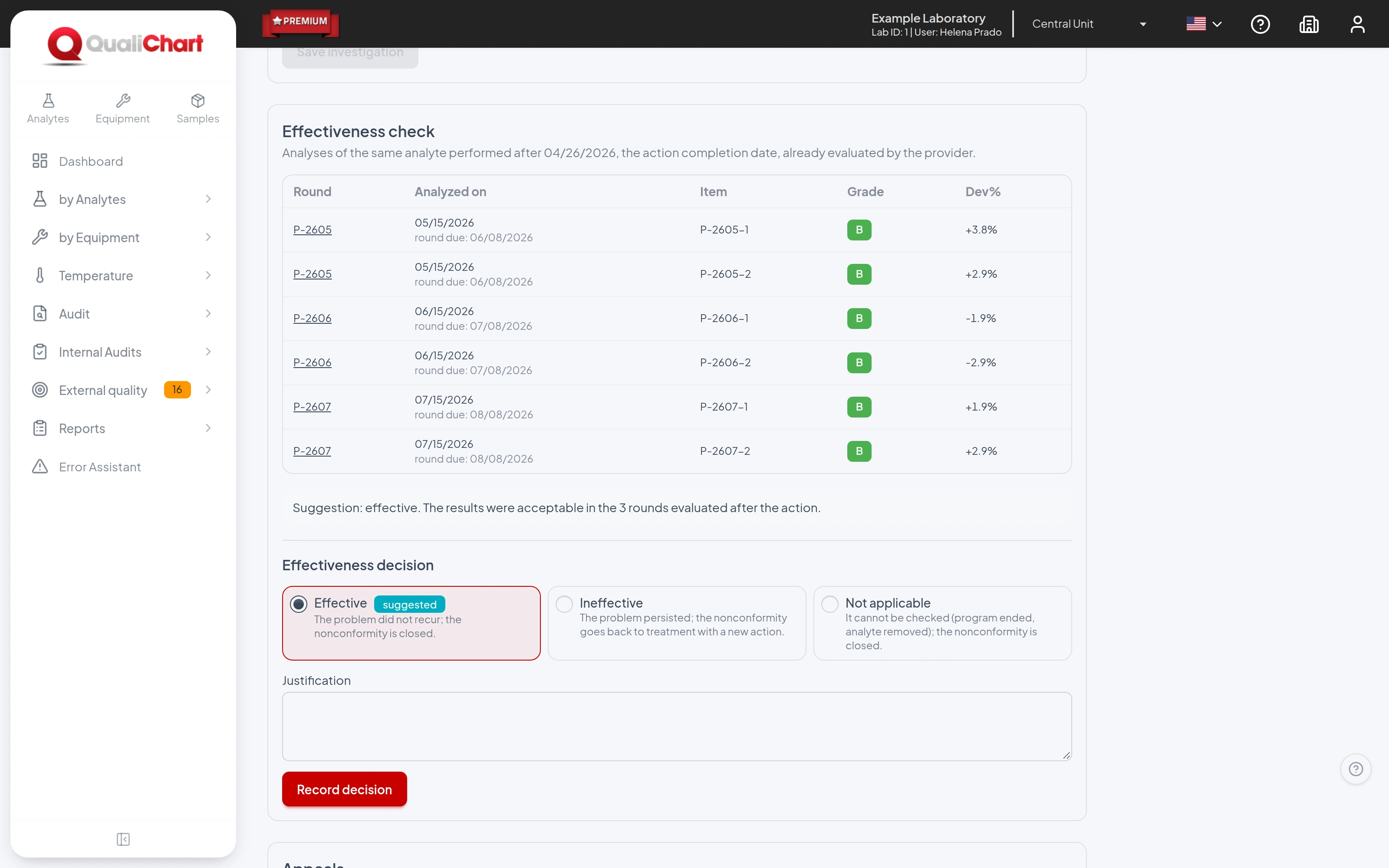
The check uses the date of analysis, not the round deadline, and leaves out the analyses of the round itself and those of cancelled rounds. Closing is noted on the control's last run, with the CEQ: prefix.
15. Close the round
The Nonconformities and closing stage lists the round's nonconformities with origin, analyte, category, responsible, deadline and status, and the button to open each one.
- Check that every submitted result was evaluated and that each nonconformity has an investigation and action defined.
- Click Close the round. The action requires the Approve and close permission and an Evaluated round.
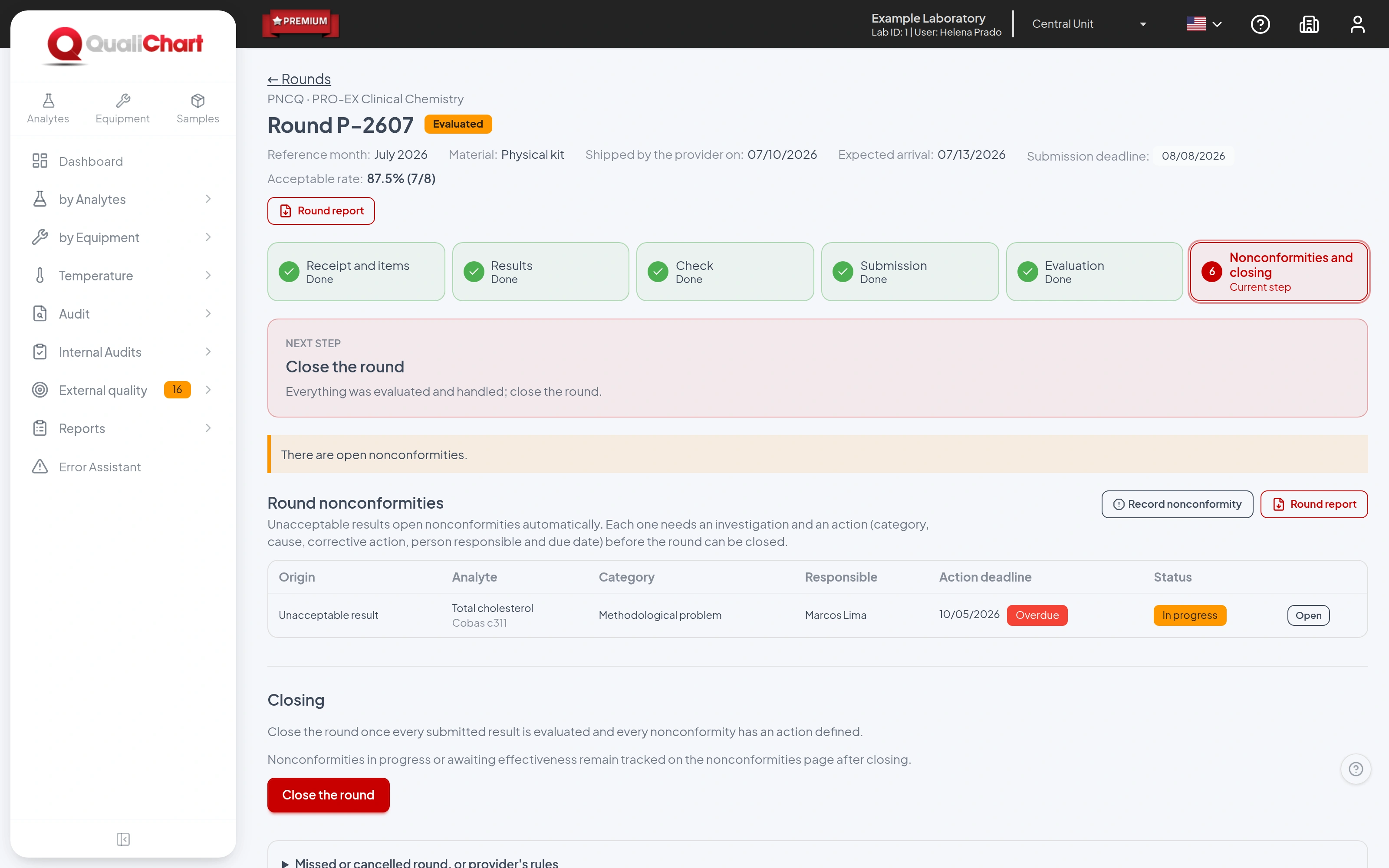
Nonconformities in progress or awaiting effectiveness are still followed on the nonconformities page after closing. Once the round is closed, results, submissions and evaluations can no longer be changed.
Under Missed or cancelled round, or provider's rules are the exception actions:
- Record as not performed requires the Check and submit permission and only appears without submissions. It asks for the reason and counts the round as missed in the cycle. Check Justified absence when the absence has a documented justification, such as a kit not delivered; in that case, no nonconformity is opened.
- Cancel the round requires the Manage providers and programs permission and is meant for rounds cancelled by the provider or registered by mistake, which do not count in performance.
- Update provider's rules, with the same permission, applies the current rules from the provider setup while the provider has not yet evaluated any result of the round.
Recording as not performed and cancelling cannot be undone.
16. Follow cycle performance
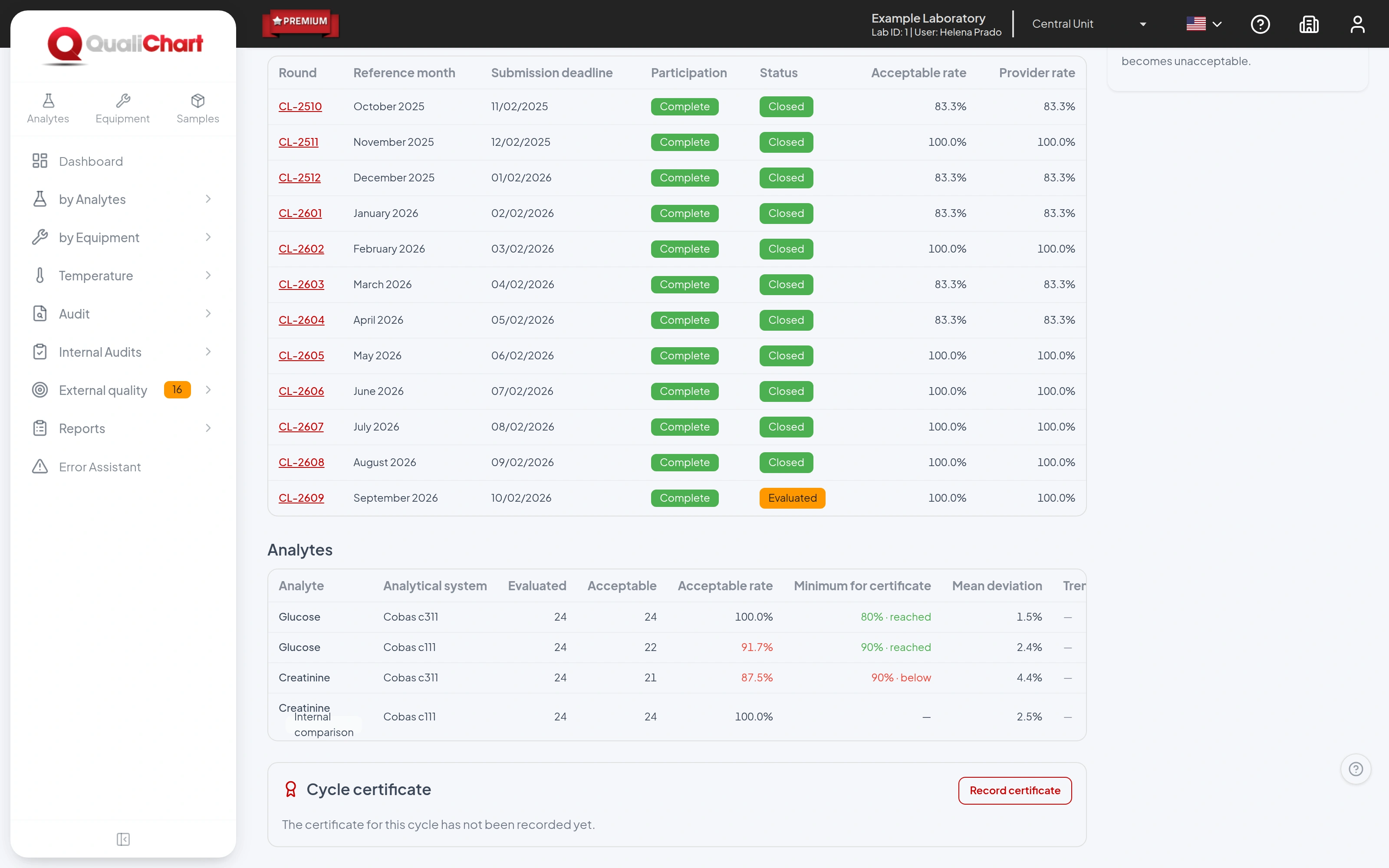
In External quality › Performance, choose the program and the cycle. The cycle follows the provider's rules, and each round enters the cycle of its reference month, even with a submission deadline in the next cycle. A recovery counts in the reference month of the round it recovers, and cancelled rounds are left out.
- Submitted rounds over those planned, with partial submissions or those already evaluated by the provider.
- Missed rounds, with justified absences and recovered rounds.
- Acceptable rate, acceptable results among those counted, with the annual band.
- Certificate, with eligibility and whether the cycle certificate was recorded.
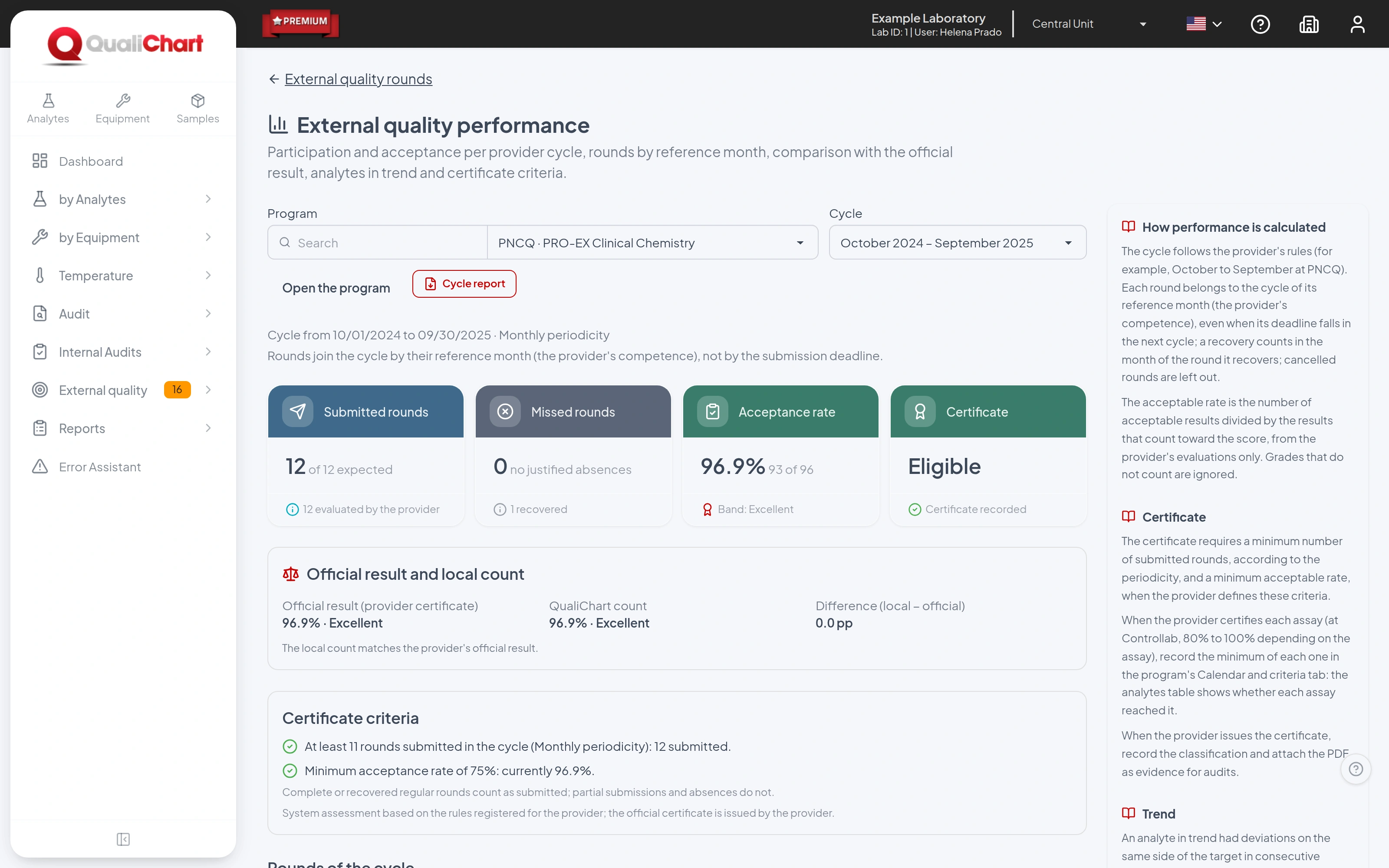
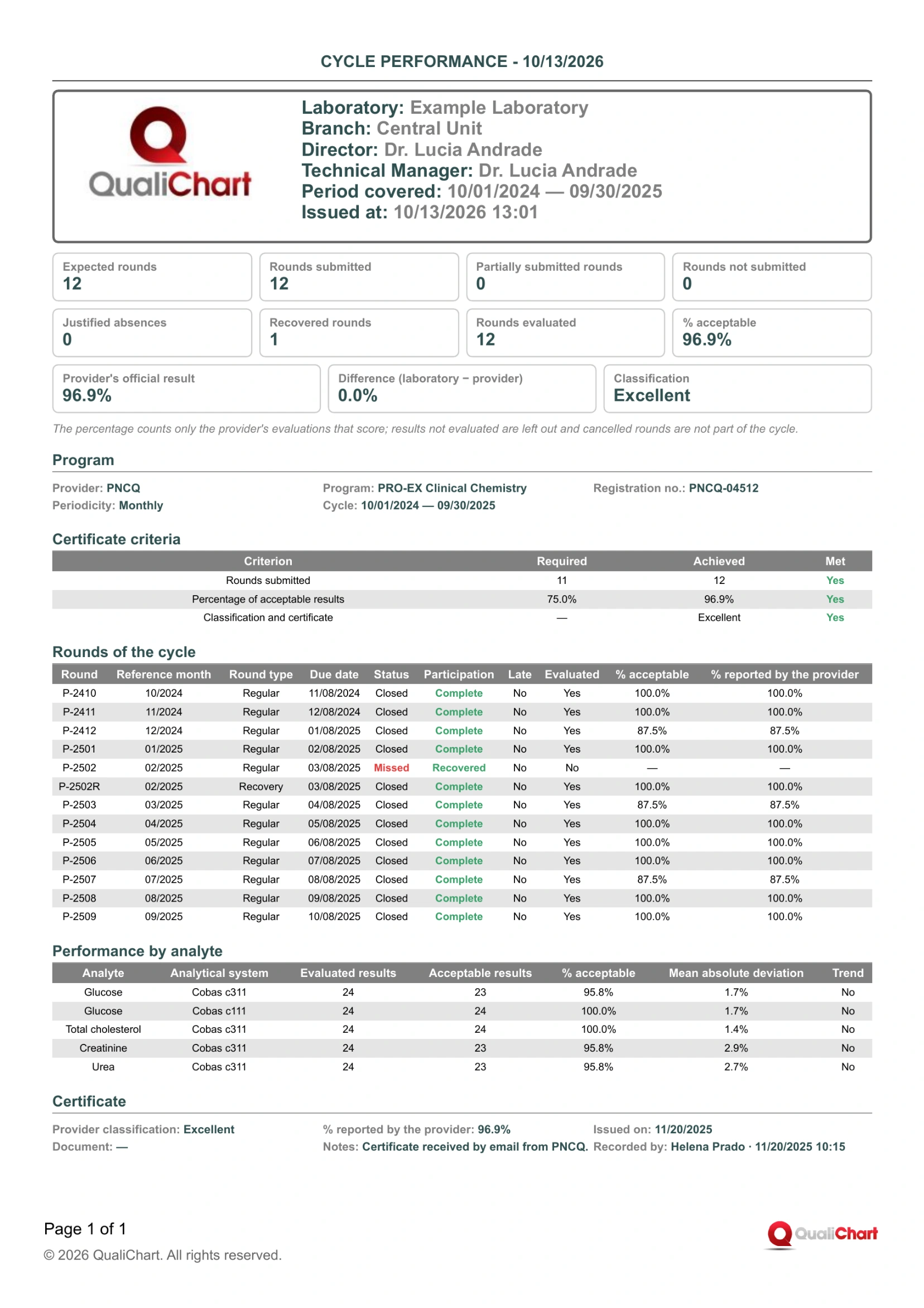
The acceptable rate considers only the provider's official evaluations that are counted, from regular and recovery rounds. Grades such as not evaluated, method cancelled and insufficient quantity are left out, as are internal comparisons and educational rounds. In the example, 93 acceptable results out of 96 counted give 96.9%, the Excellent band in the PNCQ template.
Official result and local count puts side by side the result of the provider's certificate, the QualiChart calculation and the difference in percentage points. When there is a difference, check whether every evaluation was transcribed and whether the provider's rules are up to date: the official result prevails. Certificate criteria compares the submitted rounds with the minimum for the frequency and the acceptable rate with the provider's minimum.
| Participation | Meaning | Counts as submitted |
|---|---|---|
| Complete | Every expected assay that goes to the provider was sent in the current version. | Yes |
| Partial | Part of the expected assays was sent; the others are still pending or there is a correction to resend. | No |
| Pending | Nothing has been sent yet. | No |
| Missed | The round was recorded as not performed, without justification. | No |
| Justified absence | Not performed, with a recorded justification; it does not open a nonconformity. | No |
| Recovered | The absence or rejected material was covered by a complete recovery round. | Yes |
| Cancelled | Cancelled; it does not count in the cycle. | — |
16.1 Rounds, analytes and trend
Rounds of the cycle lists each round with reference month, deadline, participation, status and the calculated and provider-reported acceptable rates. Analytes shows, by analyte and analytical system, including internal comparisons, the evaluated and acceptable results, the acceptable rate, the mean DRM and the Trend mark when deviations stayed on the same side of the target in the last consecutive rounds.
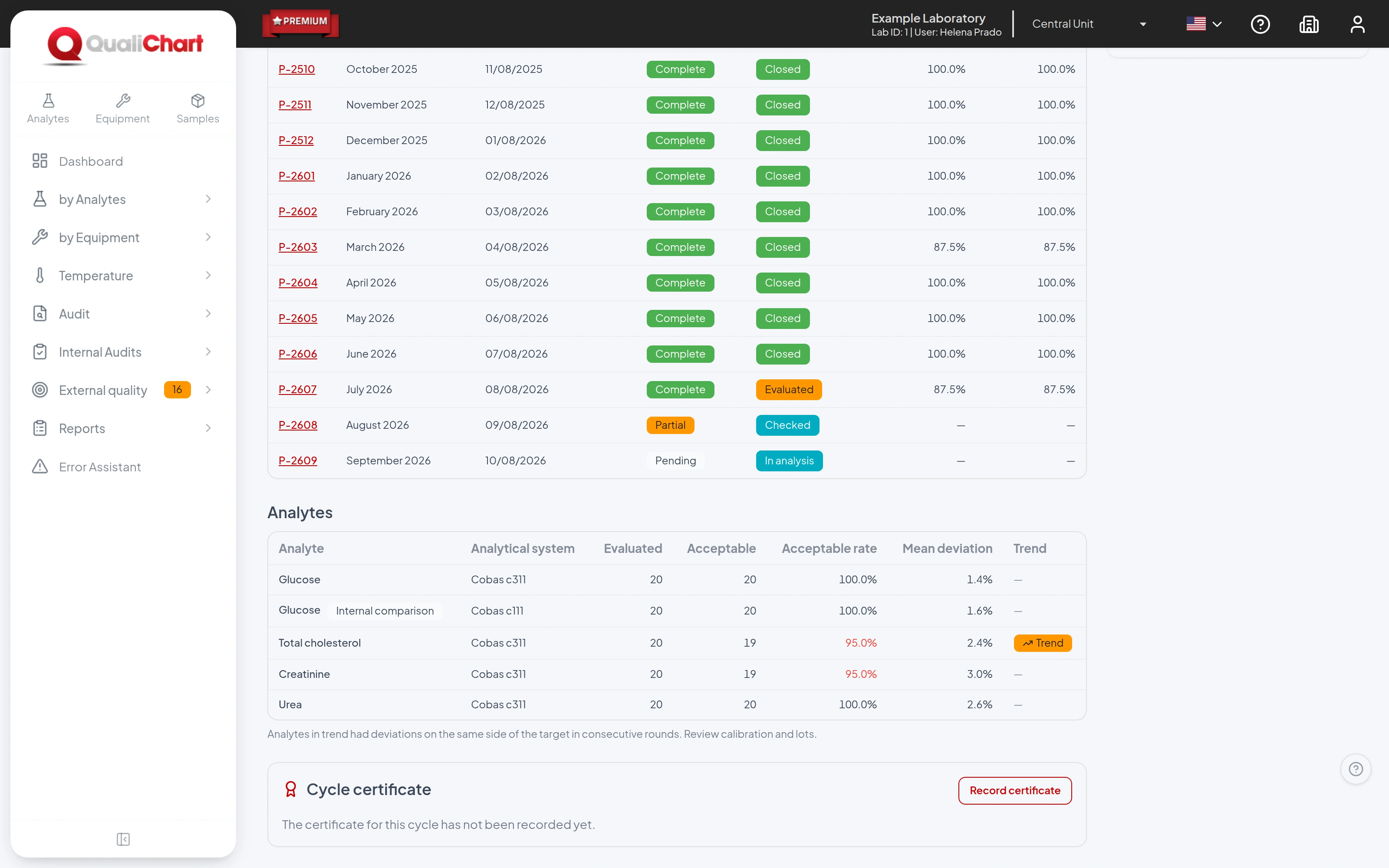
Investigate calibration and lots of an analyte in a trend before the result becomes unacceptable. The Cycle report button generates the performance PDF.
16.2 Per-assay certificate criterion
When the cycle has per-assay minimums, the Certificate card shows how many assays reach the minimum, and the Analytes table gains the Minimum for certificate column, with reached or below. An assay with a minimum and no evaluation in the cycle appears without an acceptable rate. The certificate issued by the provider remains the official reference.
16.3 Cycle certificate
- When the provider issues the certificate, click Record certificate on the Cycle certificate card of the performance screen or in the program's Certificates tab.
- Enter the provider's classification, the reported acceptable rate, the issue date, the certificate file and notes.
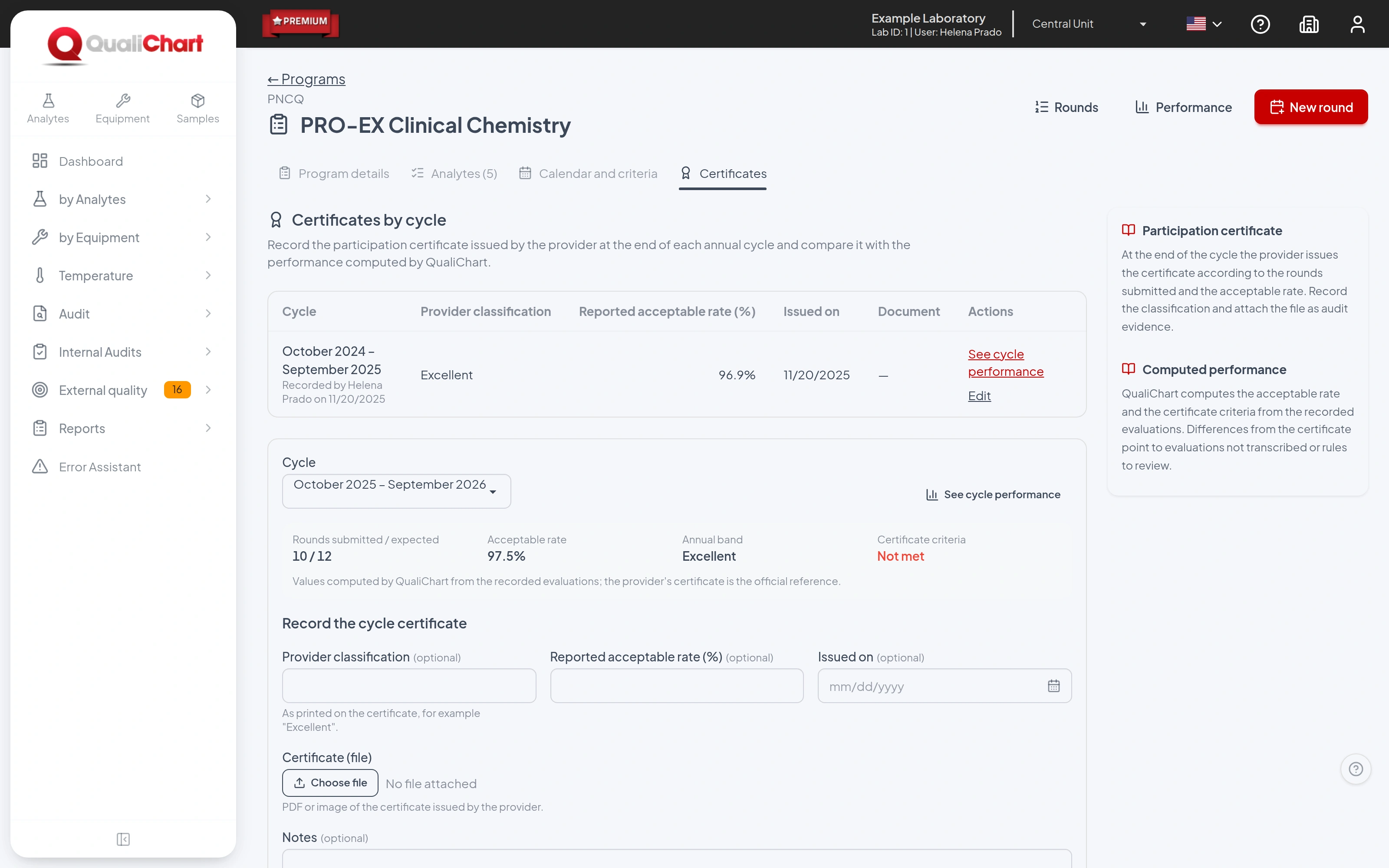
There is one certificate per program and cycle; recording again updates the existing one. The Certificates tab shows, next to each certificate, the submitted rounds, the annual band and the criteria calculated by QualiChart. Differences point to evaluations not transcribed or rules to review. Recording certificates requires the Manage providers and programs permission. At the end of the cycle, programs whose provider defines certificate criteria show the Cycle certificate not recorded pending item.
17. Receive email alerts
With Send daily e-mail alerts turned on in the policy, QualiChart sends once a day, at 7 a.m. (Brasília time), an e-mail with each unit's external quality pending items, only when there is at least one. Administrators receive the pending items of every unit; other users, those of their unit that match their permissions. Each item brings the deadline or reference date and the link to the round, nonconformity or program, opened in the right unit. The address used is the user's e-mail, or the login when it is an e-mail address.
| Pending item | When it appears | Who receives it |
|---|---|---|
| Calendar rounds not registered | Official calendar round not registered after the provider's deadline counted from shipping. | Receive kits |
| Kits not received | Physical kit not received after the provider's deadline counted from shipping or, with no shipping date, at the end of the expected arrival day. | Receive kits |
| Submission deadline approaching | Assays without results or results not sent, with the next deadline within the policy's warning days. | Enter results or Check and submit |
| Submission deadline overdue | The same, with the deadline already passed. | Enter results or Check and submit |
| Corrections to resend | Result corrected after the submission and not yet resent to the provider. | Check and submit |
| Results to check | With the check required, entered results not yet checked. | Enter results or Check and submit |
| Provider evaluations to record | Submitted results without the provider's evaluation. | Record evaluations |
| Appeal deadline ending | Unacceptable result without an appeal whose deadline ends within the warning days. | Record evaluations |
| Appeals awaiting the provider's decision | Appeal recorded without the provider's decision. | Record evaluations |
| Nonconformities overdue | Open or in progress with the action deadline passed. | Approve and close |
| Effectiveness to check | Awaiting effectiveness, already with enough analyses for the suggestion. | Approve and close |
| Cycle certificate not recorded | Cycle ended with rounds, in a program whose provider defines certificate criteria. | Manage providers and programs |
The same pending items appear in the panel of the Rounds screen and in the side menu counter.
18. Generate reports
- In the Reports menu, click External Quality Assessment.
- Select one or more of the five reports. The window shows only the fields needed: program, round, cycle, period, nonconformity status, report language, inclusion of documents and background generation with delivery by e-mail.
- Click Generate report. A report without documents comes out as a PDF; several reports or the inclusion of documents produce a ZIP.
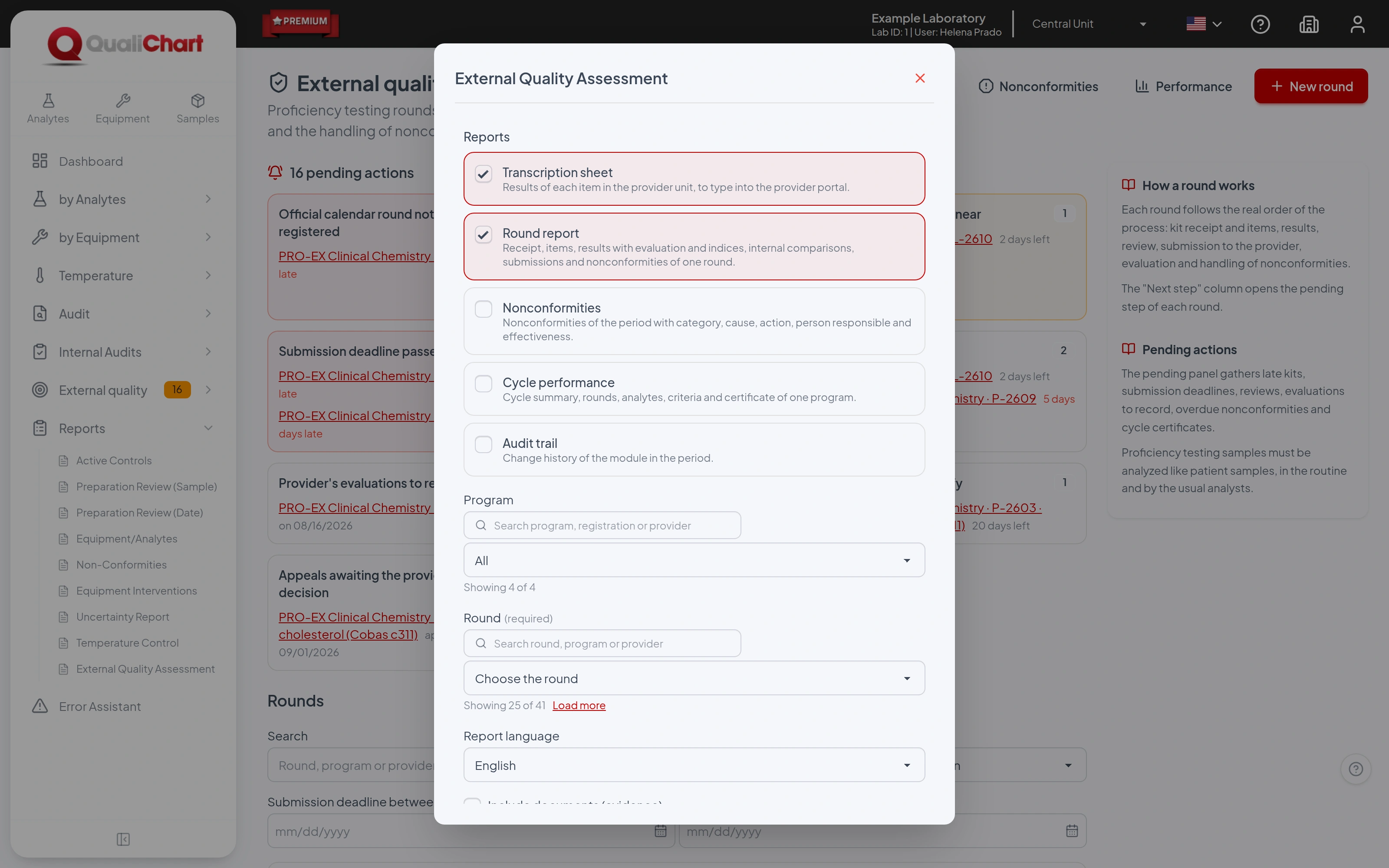
The PDFs use the header of the other QualiChart reports: laboratory, unit, director, technical manager, period, filters and issue date. The round report, the nonconformities and the audit trail come out in landscape. The report language can be Portuguese, English or Spanish and starts in the system language.
With Include documents (evidence), the ZIP brings the evidence folder with the evaluation reports, submission receipts, appeal and nonconformity documents and certificates linked to the chosen reports. Any external quality permission allows issuing the reports, except the audit trail.
| Report | Filters | Content |
|---|---|---|
| Transcription sheet | Round | Expected assays of each item as the provider's form asks for them, with the submission status. |
| Round report | Round | Identification and rules, receipt and items, evaluation with indices, traceability, internal comparisons, appeals, submissions and nonconformities. |
| Nonconformities | Period, program and status | Nonconformities opened in the period with category, cause, action, impact, responsible, deadline and effectiveness. |
| Cycle performance | Program and cycle | Participation, official result and local count, certificate criteria, rounds, analytes and certificate. |
| Audit trail | Period | Additions, changes and deletions in the module with author, date and values. |
The examples below were generated with the demonstration data.
18.1 Transcription sheet
It brings provider, program, registration number, round, reference month and deadline and, for each usable item, the deadline, the lot and a table with the expected assays that go to the provider, in the program's order. Each row shows the analyte at the provider, code, analytical system, method, reagent, value as the provider's form asks for it, unit and submission status: No result, To send, Sent or Rectify with the provider. Rejected items are left out.
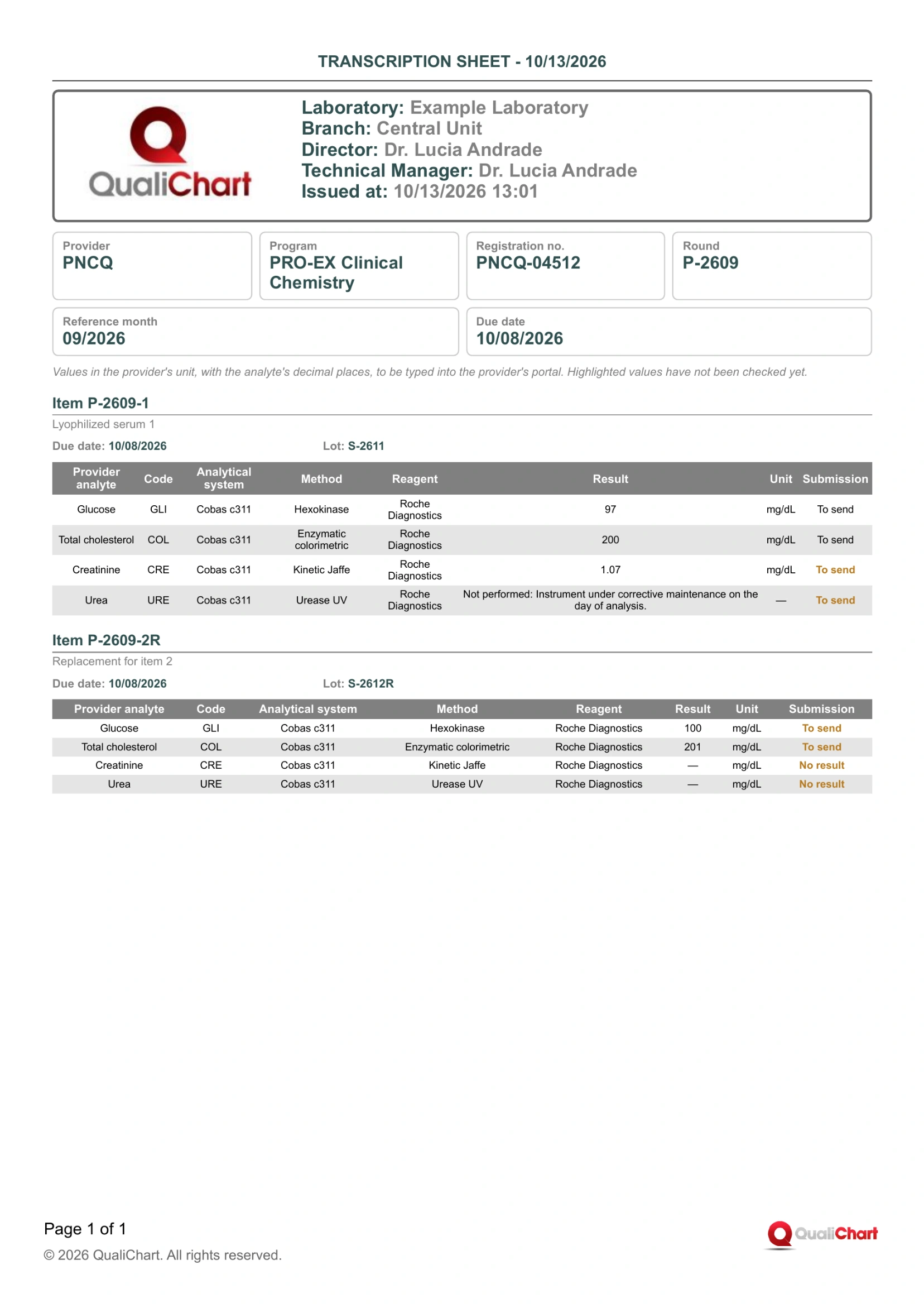
An assay not performed comes out with its reason, and To send stays highlighted while the result has not been checked. Use the sheet to enter results in the provider's channel and file it as the transcription record. After the submission, each row shows the data of the version sent.
18.2 Round report
The PDF, titled Round record, is the round's complete record for audits. It brings the identification and the source of the rules used, the receipt with condition, temperature and complaint, and the items with lot, acceptance, substitute and preparation.
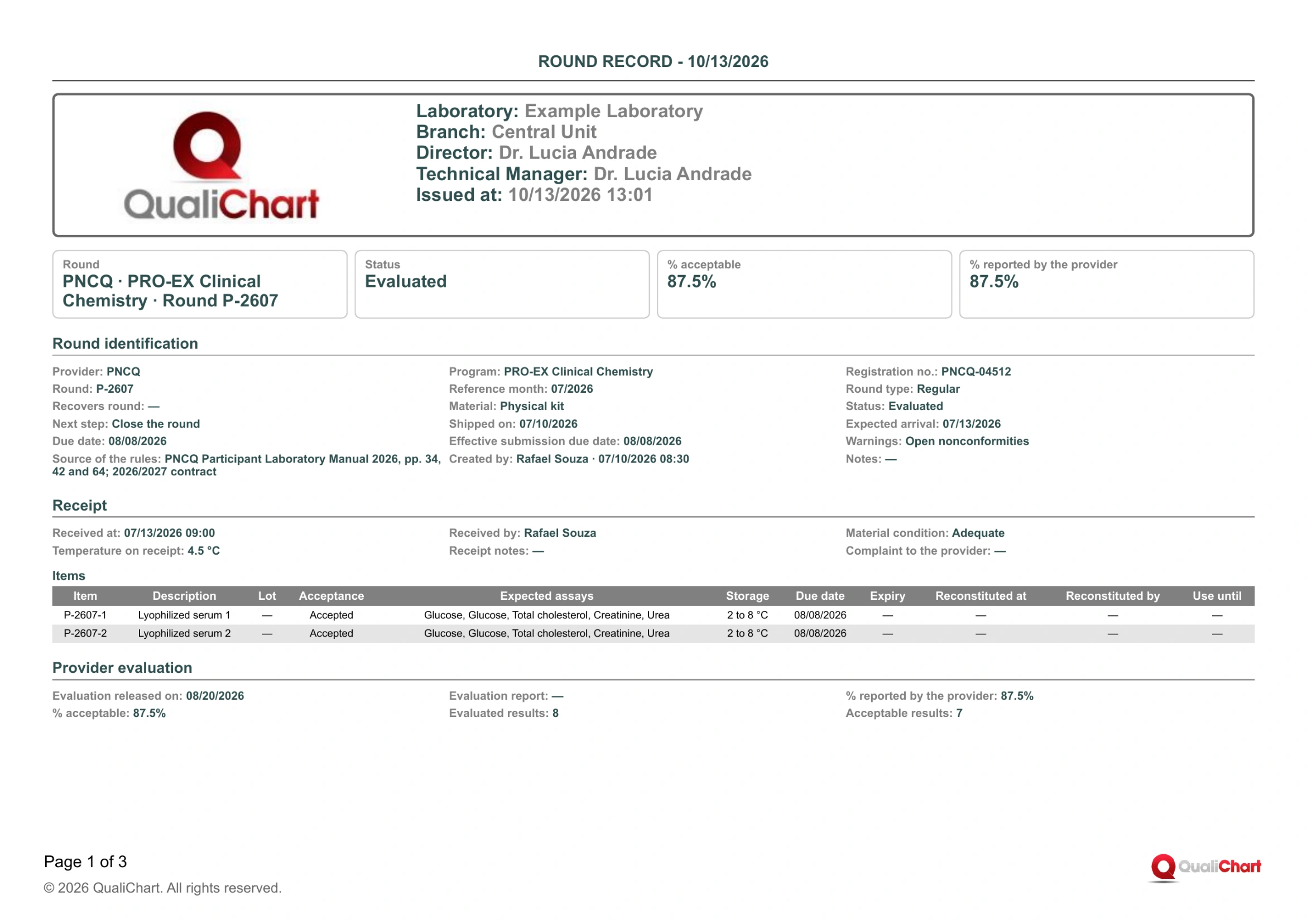
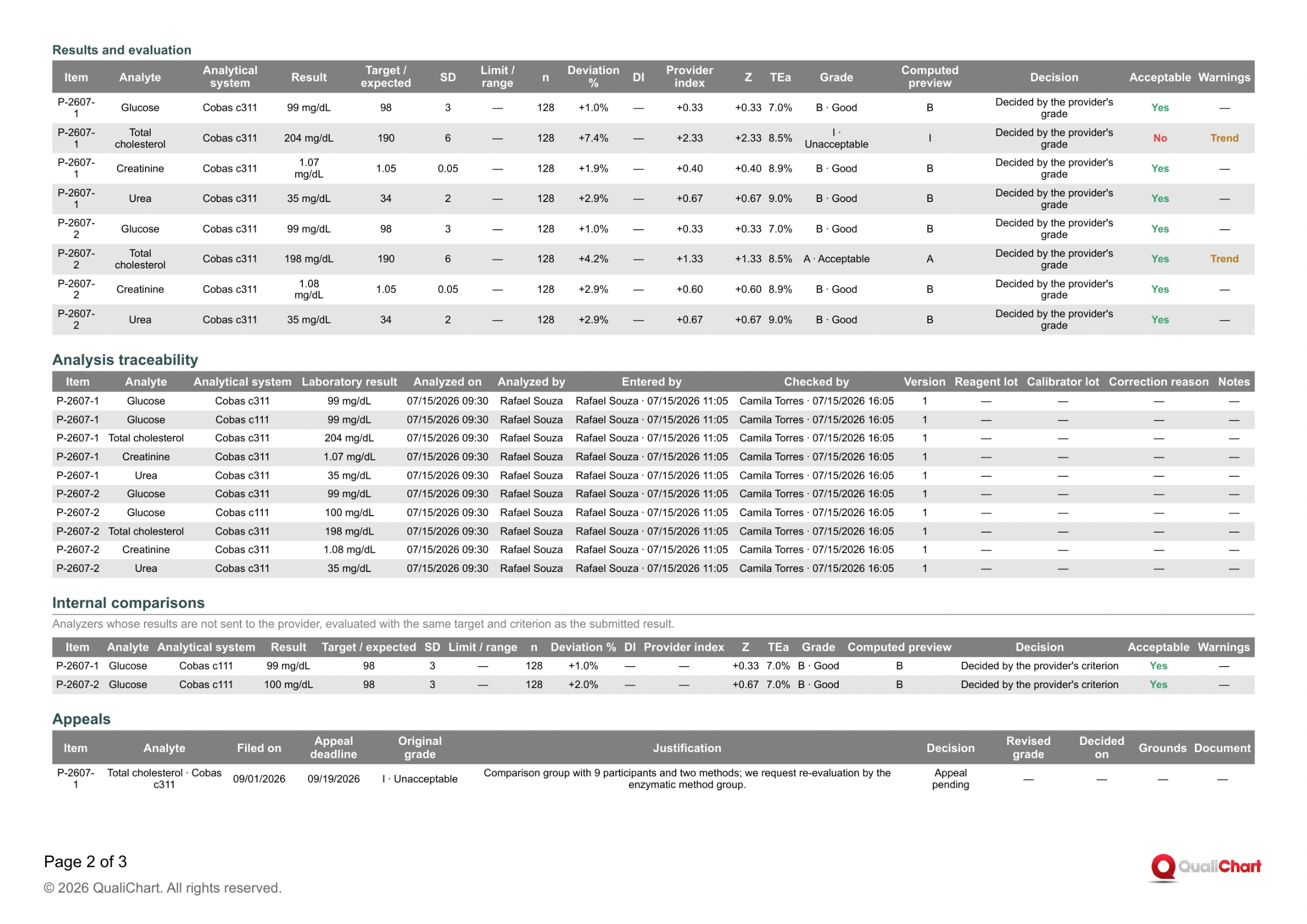
The following pages hold the provider's evaluation with each result, target, criterion, indices, TEa, grade, calculated preview and origin of the decision, the traceability of the analysis (date and time, analyst, who entered and checked, version, reagent and calibrator lots and correction reasons), internal comparisons, appeals, submissions and nonconformities.
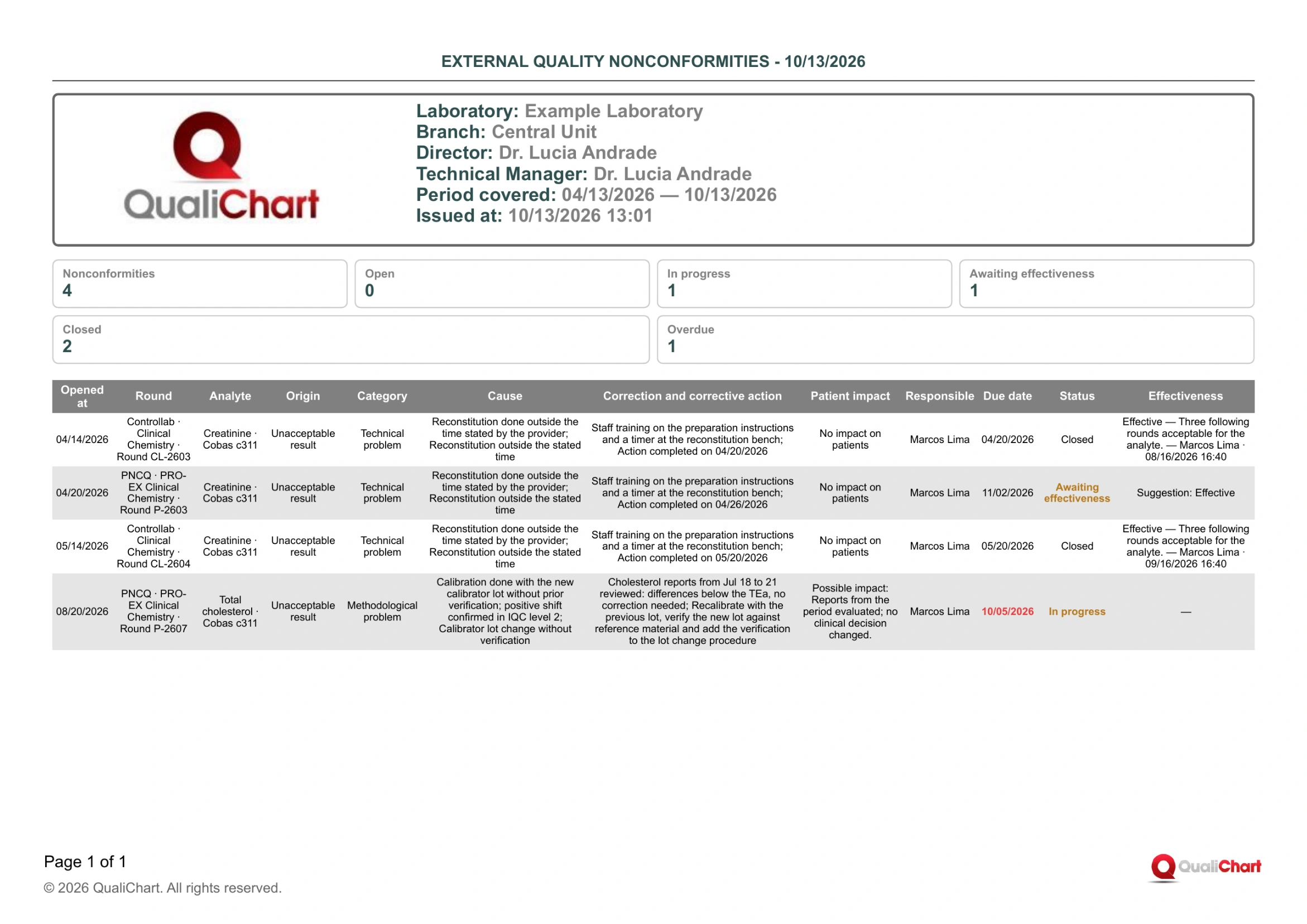
18.3 Nonconformities
It lists the nonconformities opened in the period, with the count by status and of those overdue. Each row brings the opening date, round, analyte, origin, category, cause, correction and corrective action with the completion date, impact on patients, responsible, deadline, highlighted when overdue, status and effectiveness, with the decision or the suggestion. Filter by program and status to follow the action plan.
18.4 Cycle performance
It shows the program and the cycle, the summary of planned, submitted, partial, missed, justified-absence, recovered and evaluated rounds, the calculated acceptable rate, the official result, the difference and the band. Then come the certification criteria, the rounds of the cycle, the performance by analyte and system, with mean DRM and trend, and the recorded certificate. With documents, the ZIP includes the rounds' evaluation reports and the certificate.
18.5 Audit trail
It lists, for the period, every addition, change and deletion in external quality with date, user, record, operation and fields changed with old and new values, including the results sent in each version and the expected assays of each item. Laboratory records, such as providers, documents, policy and permissions, appear in every unit; programs, rounds and their records, only in the report's unit.
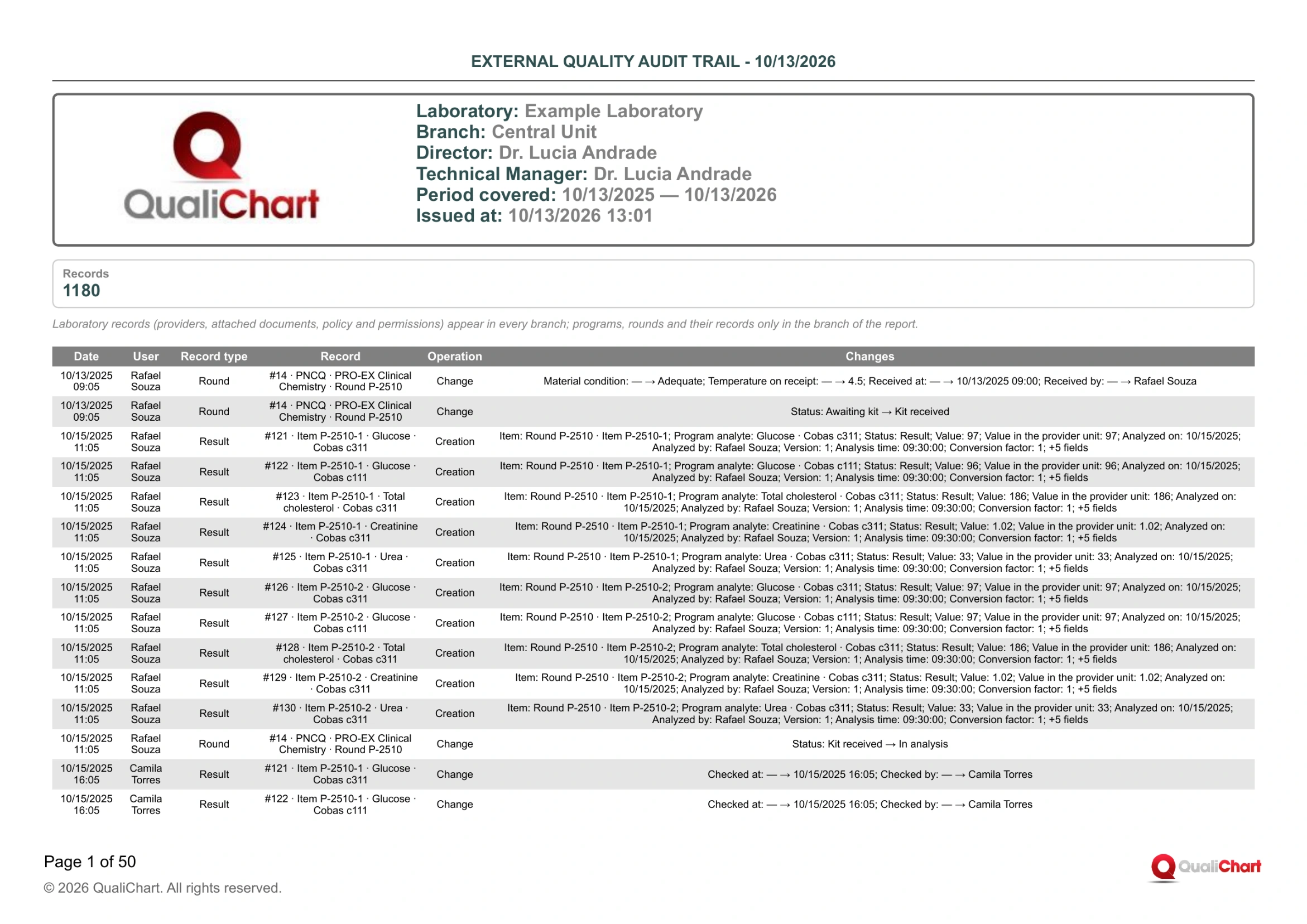
The PDF brings up to 5,000 records; shorten the period to see the rest. The report requires the View audit trail permission.
To understand what RDC 978/2025, PALC and DICQ require from external quality assessment, read the external quality assessment guide.